Skip to Content
Post Canvas

Features of the React editor

A visual tour of the Post Canvas React rich text editor: menus, mentions, image galleries, collages, YouTube embeds, link cards, presets and HTML output.

Each screenshot below is the real editor, captured from this site. Open the playground to try every switch yourself, or read the guide linked under each part.
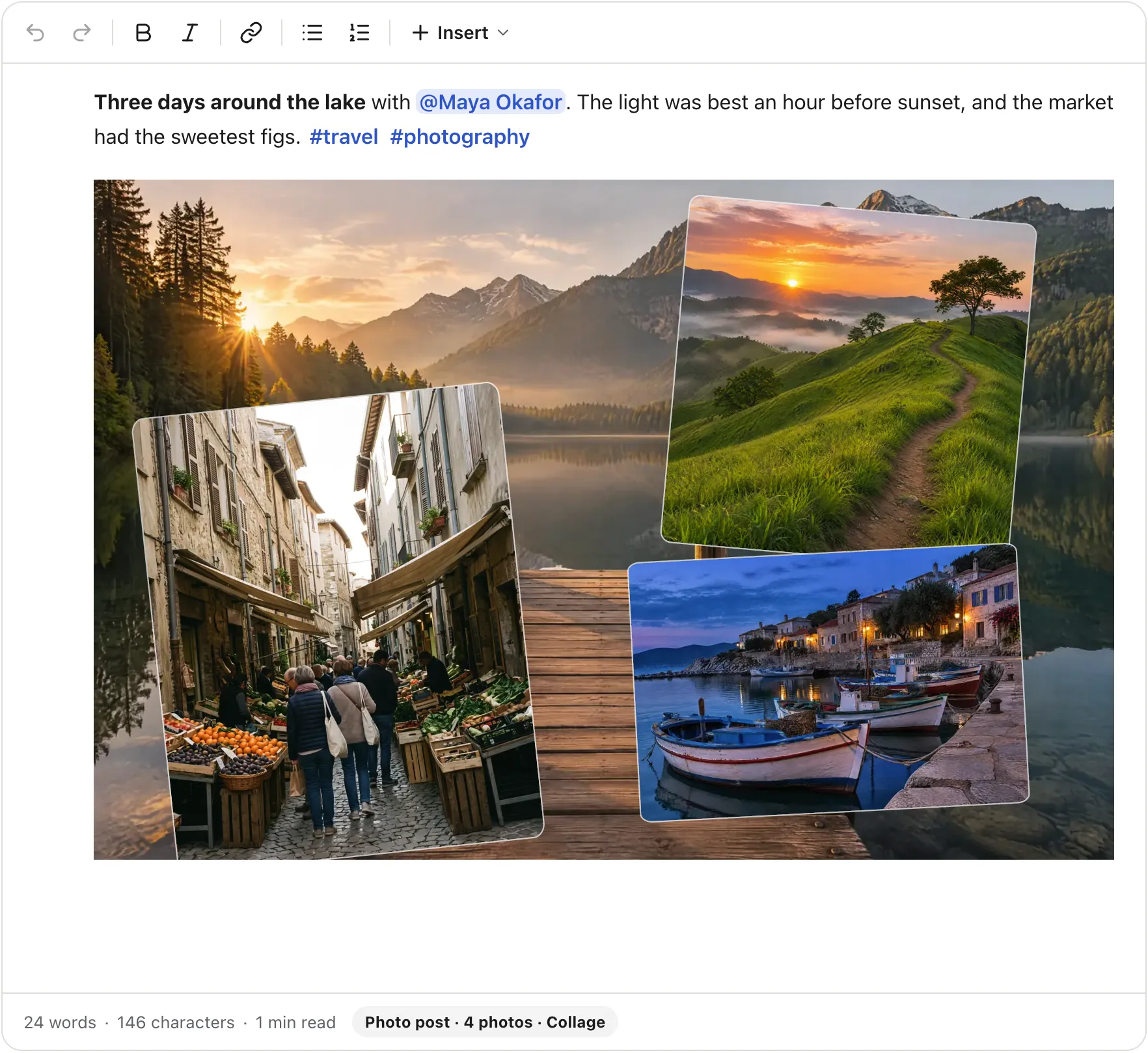
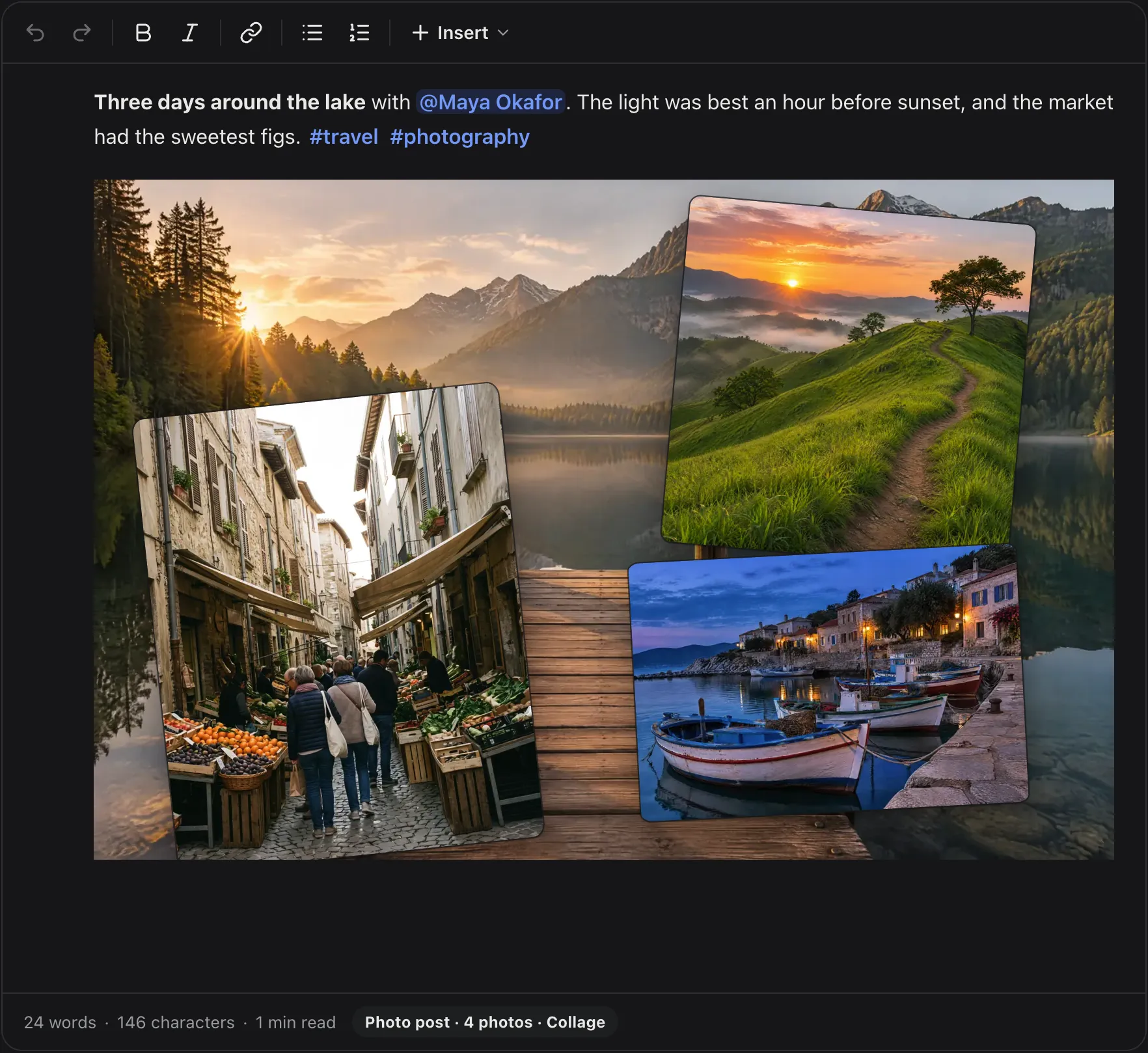
The Post Canvas editor with the social preset: a short post with a mention, two hashtags and a four-photo collageThe Post Canvas editor with the social preset: a short post with a mention, two hashtags and a four-photo collage
The social preset: a post with a mention, two hashtags and a four-photo collage.

Rich text and a toolbar

Headings, bold, italic, underline, strike, code, sub and superscript, links, colours, highlights, alignment, lists, task lists, quotes, tables and code blocks. The toolbar shows what the current preset allows, and Markdown shortcuts work as you type.
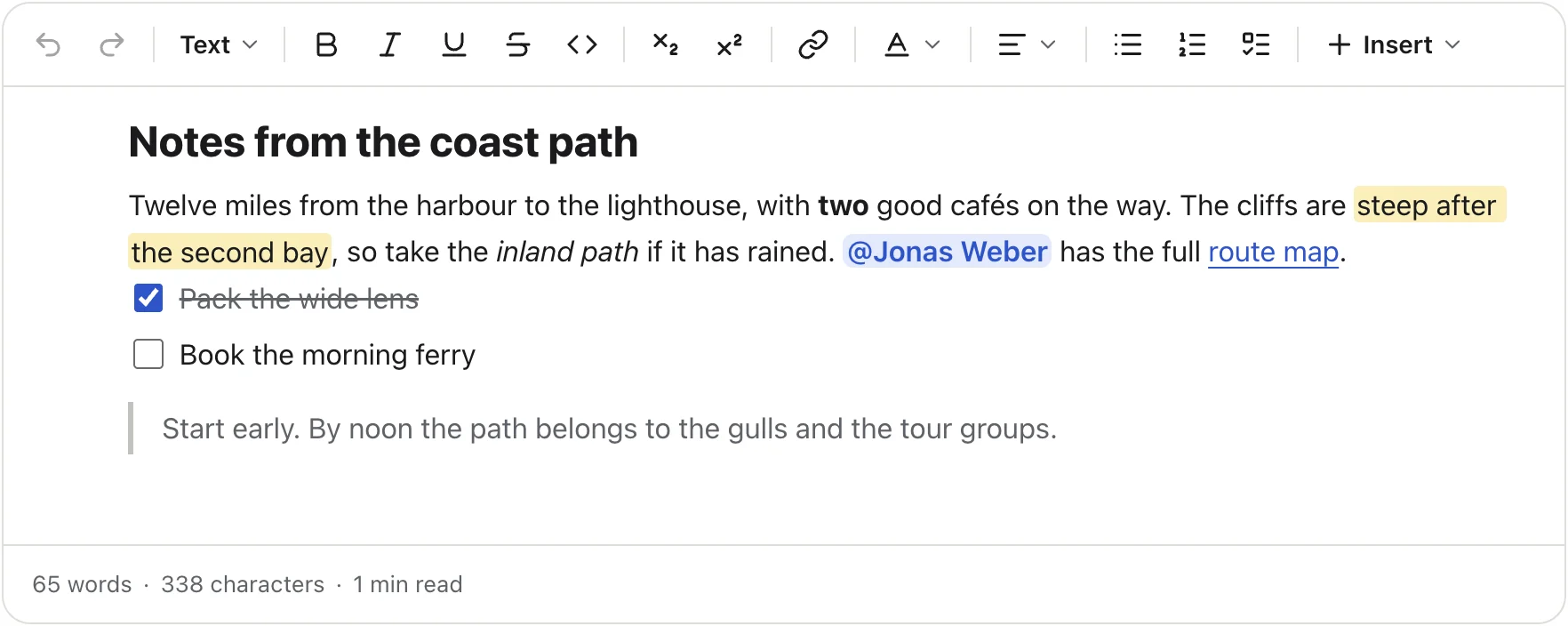
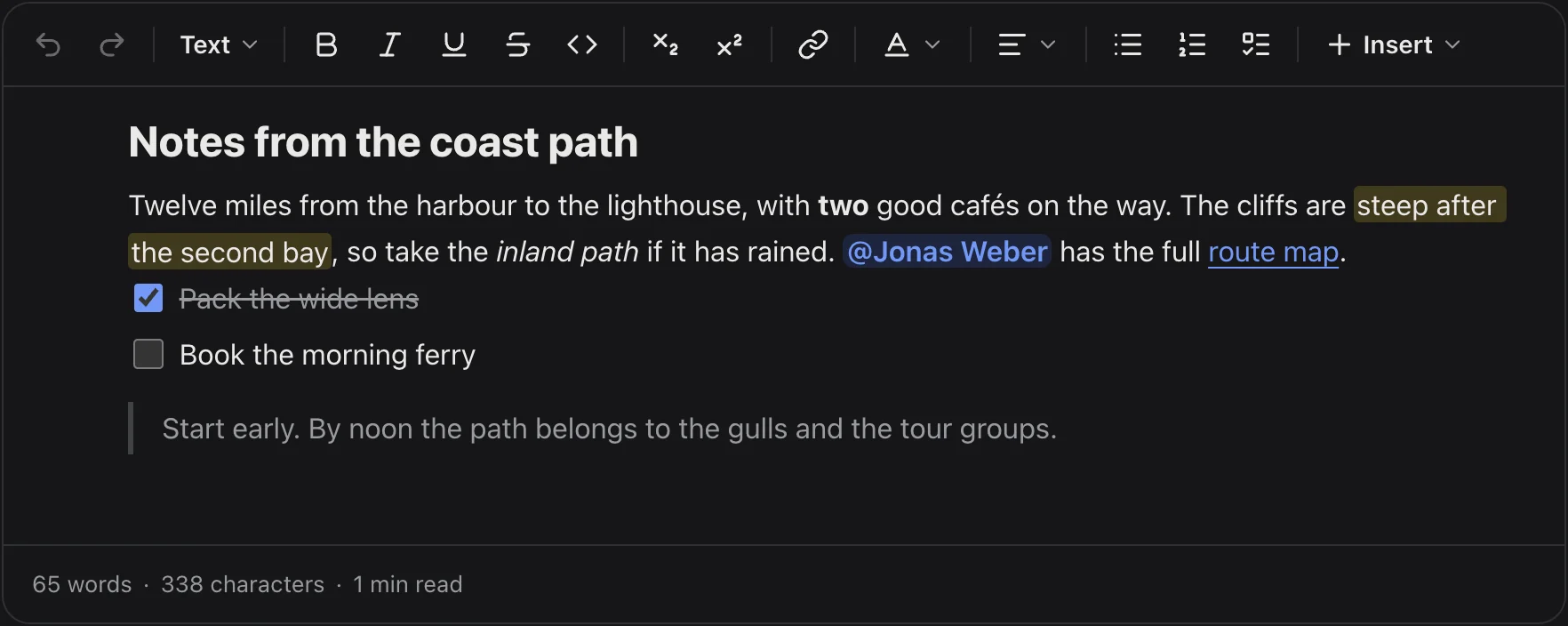
The full toolbar above a formatted note with a heading, bold, italic, a highlight, a mention, a link, a task list and a quoteThe full toolbar above a formatted note with a heading, bold, italic, a highlight, a mention, a link, a task list and a quote
The full toolbar above a note with a heading, marks, a mention, a link, a task list and a quote.

Selection menu and slash menu

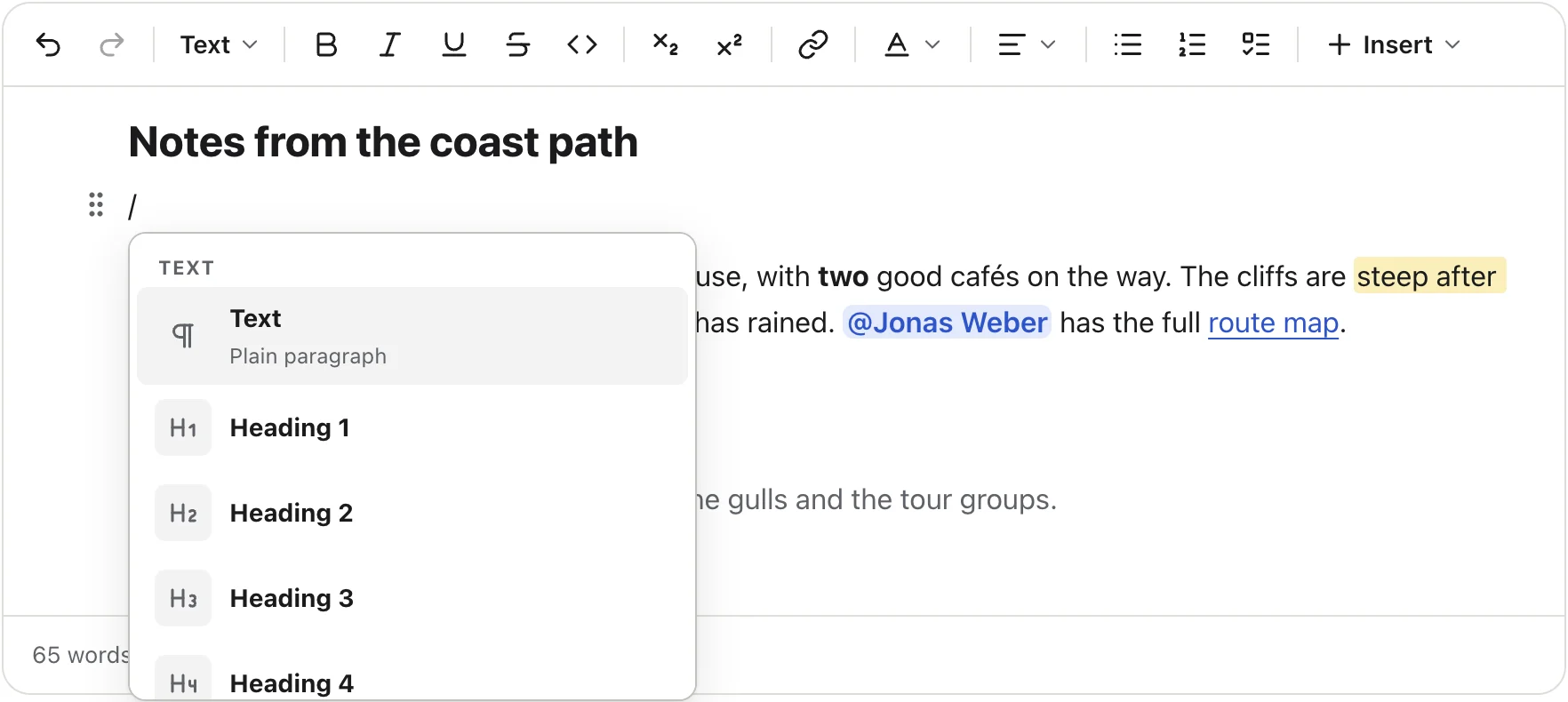
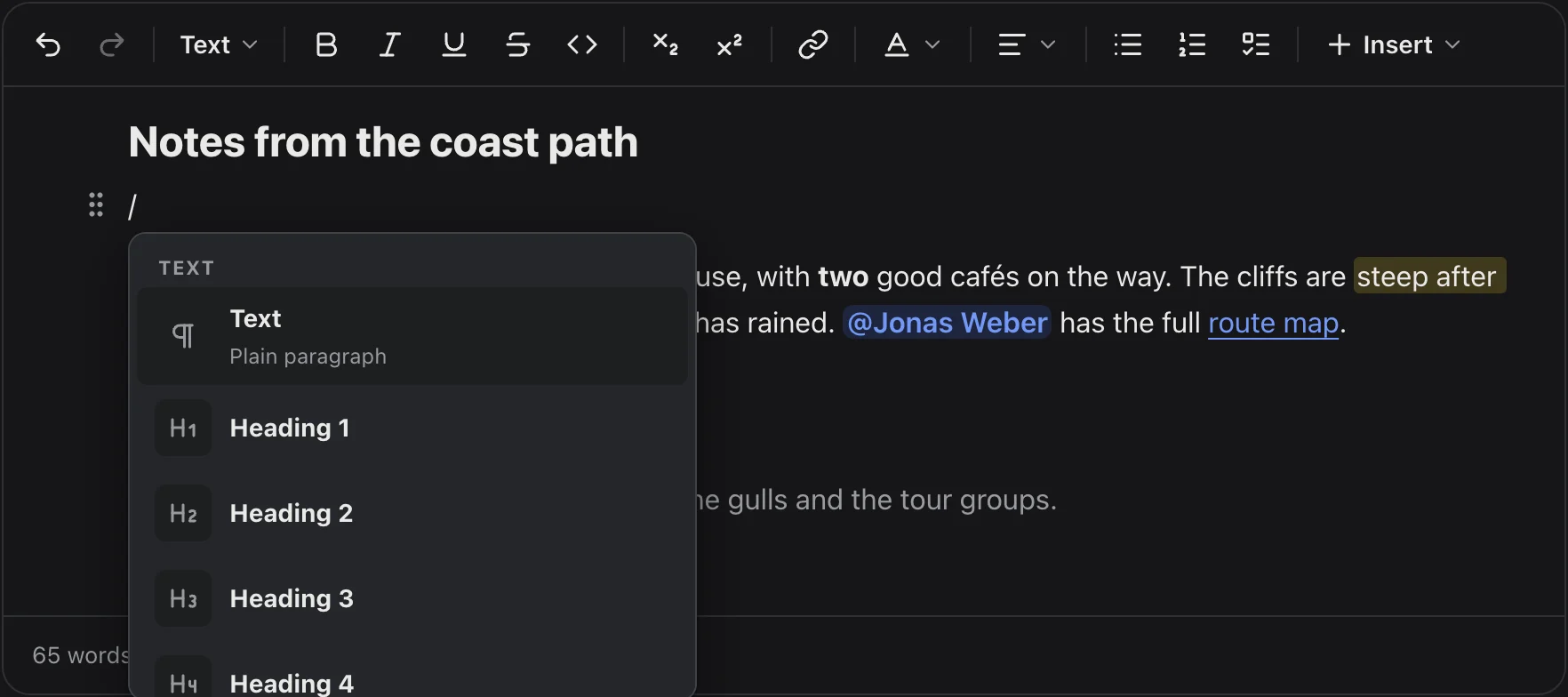
Select text and a small menu offers the common marks and Turn into. Type / on an empty line to insert any block, and keep typing to filter the list.
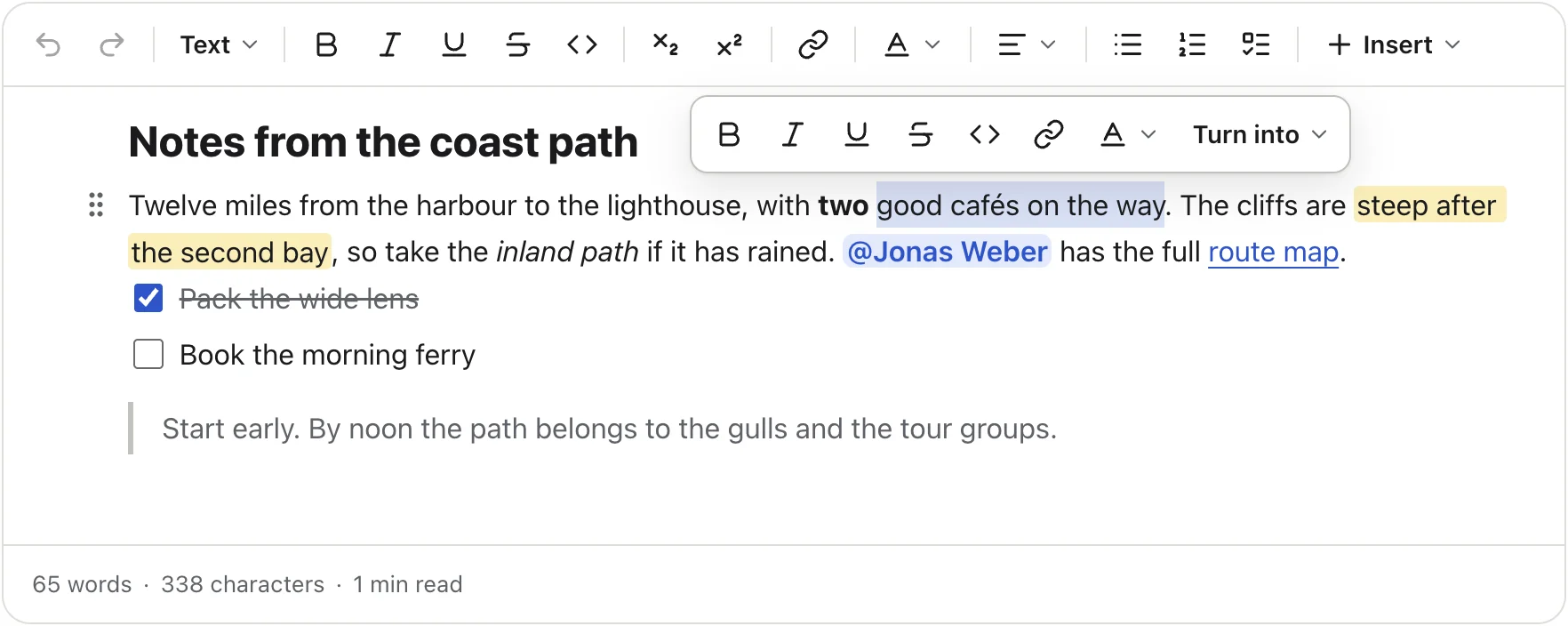
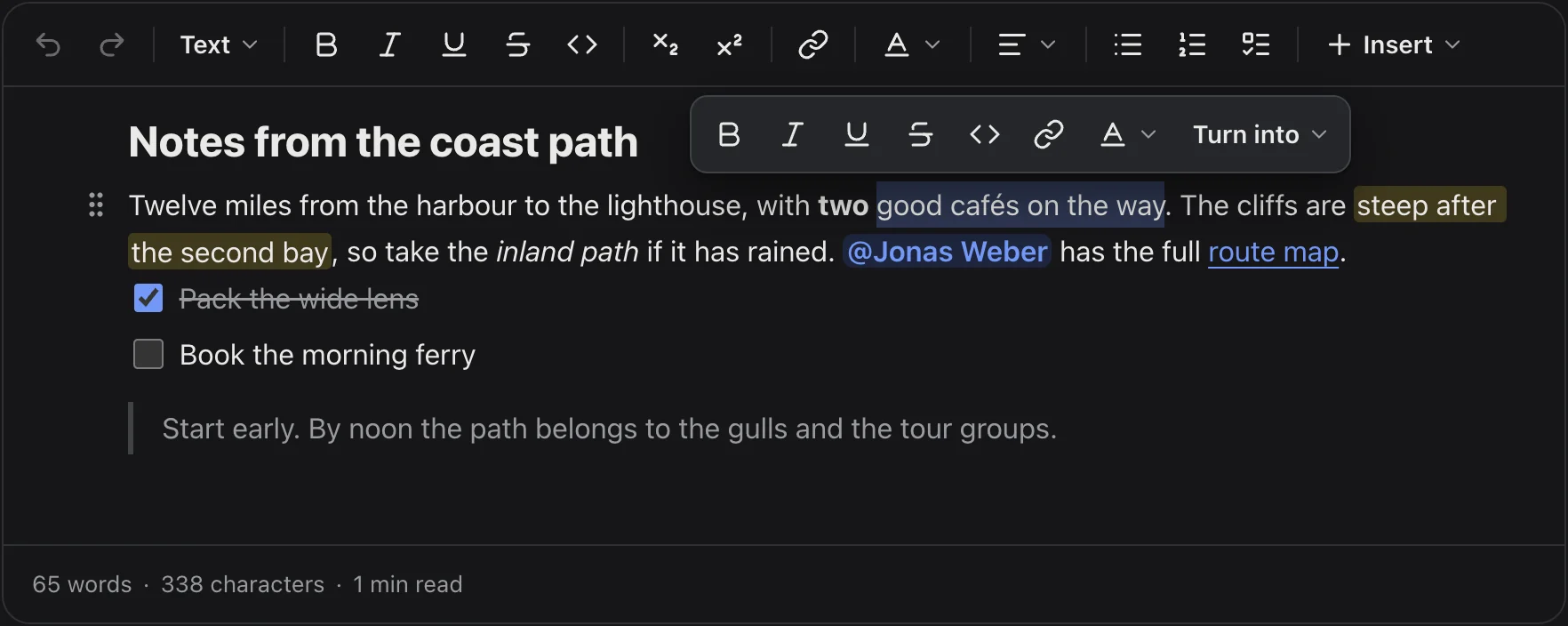
The selection menu floating above selected text, with bold, italic, underline, strike, code, link, colour and Turn intoThe selection menu floating above selected text, with bold, italic, underline, strike, code, link, colour and Turn into
The selection menu.
The slash menu open under a typed slash, listing Text, Heading 1, Heading 2, Heading 3 and Heading 4The slash menu open under a typed slash, listing Text, Heading 1, Heading 2, Heading 3 and Heading 4
The / menu.

Mentions and hashtags

Type @ or # and pick from your own people and tags. The lists come from your API through the mention and hashtag adapters. See Mentions and hashtags.
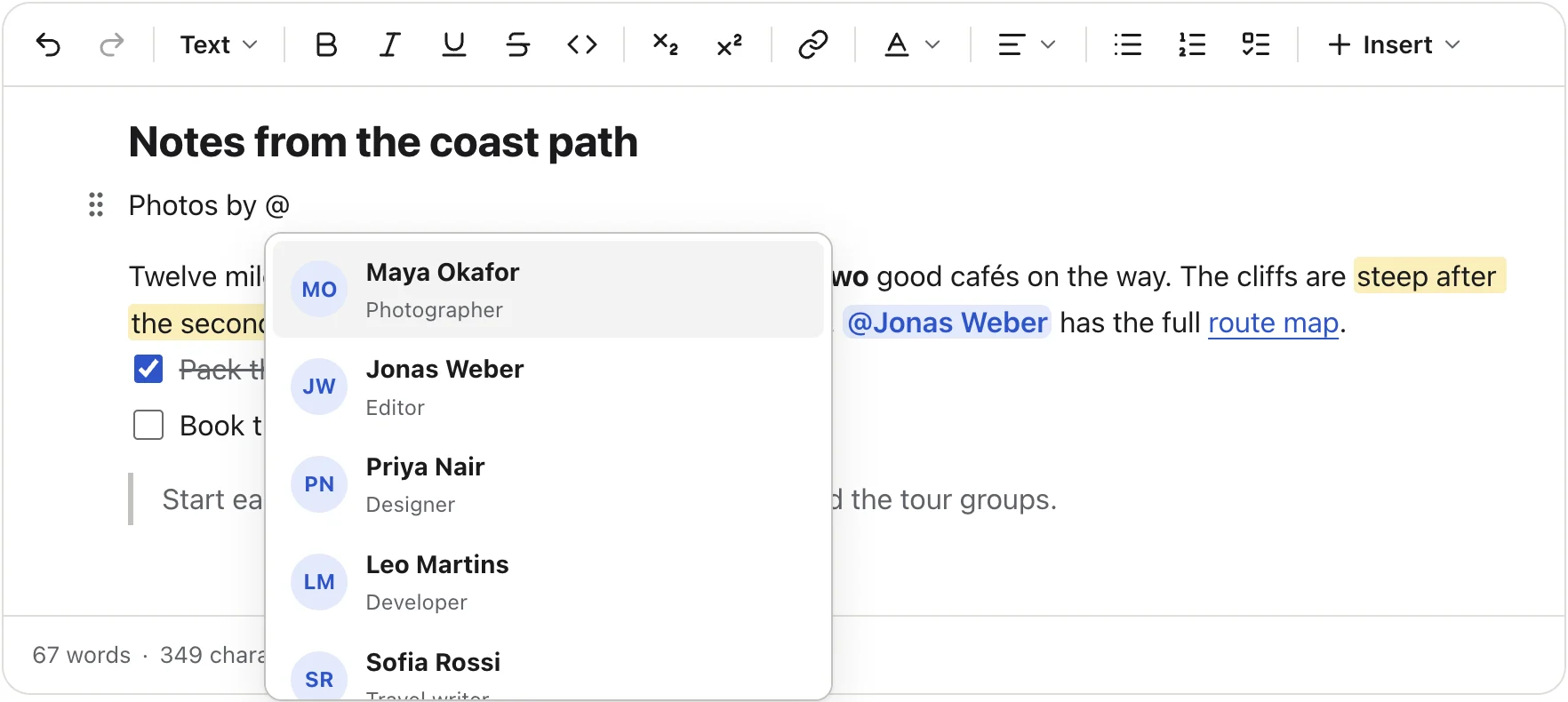
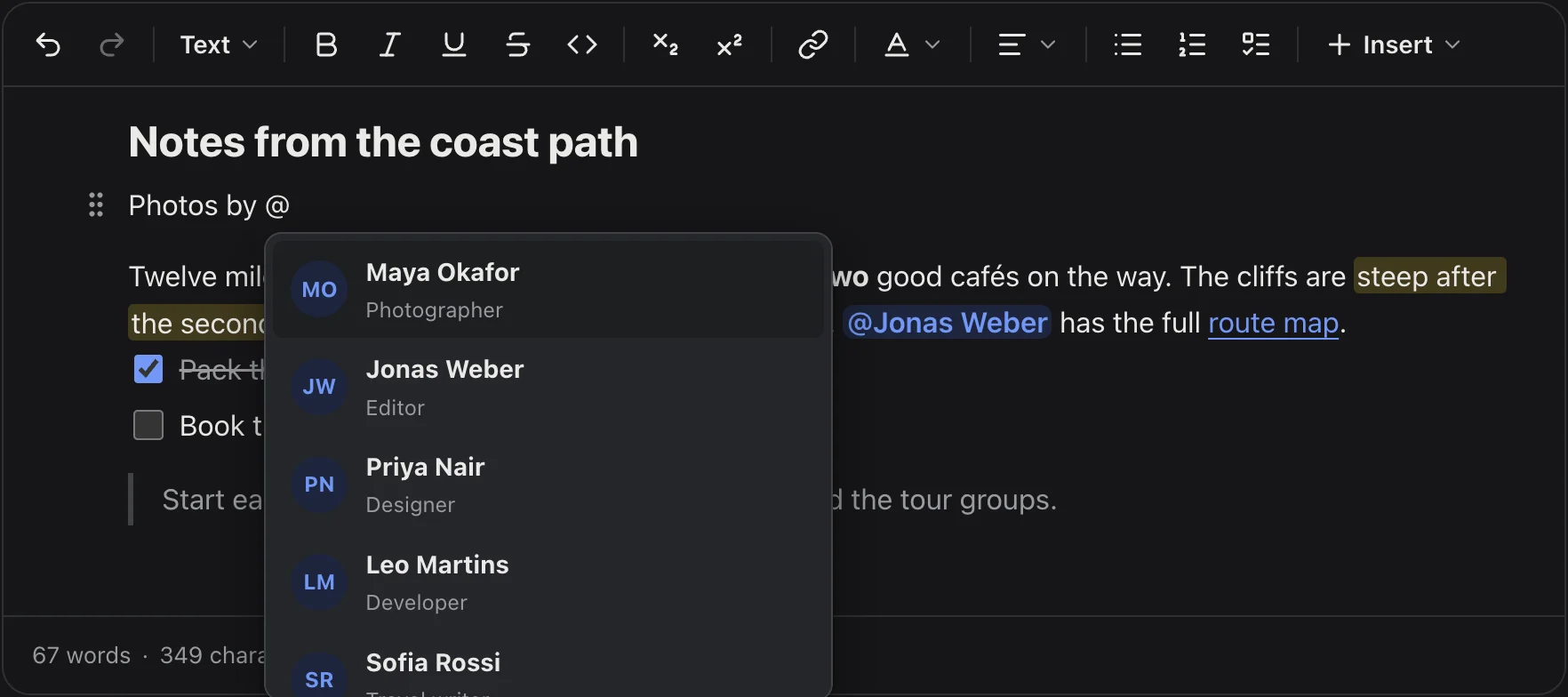
The mention list open after typing @, showing people with their initials and rolesThe mention list open after typing @, showing people with their initials and roles
The @ list, with names and roles from a mentions adapter.

Photo galleries in four layouts

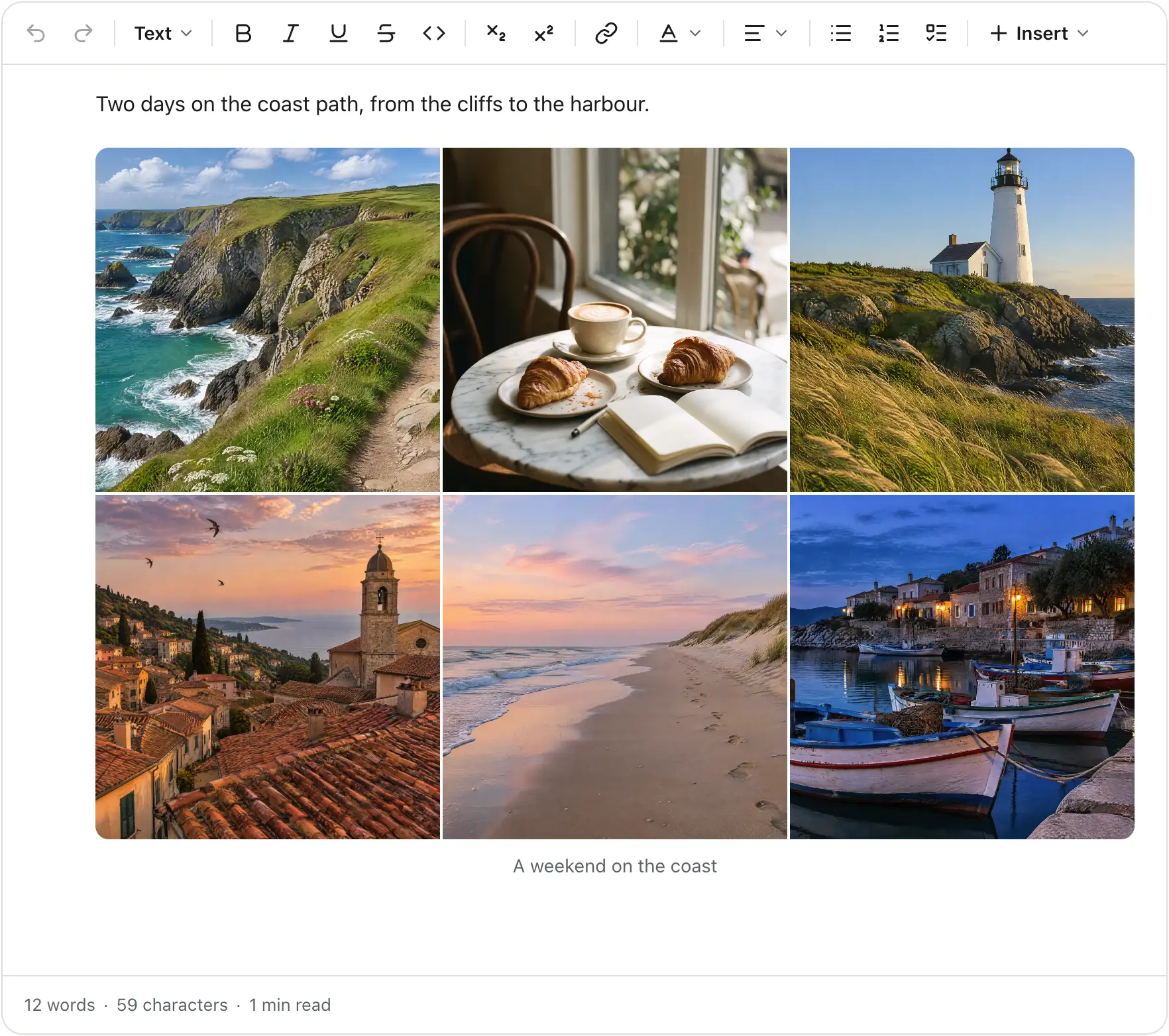
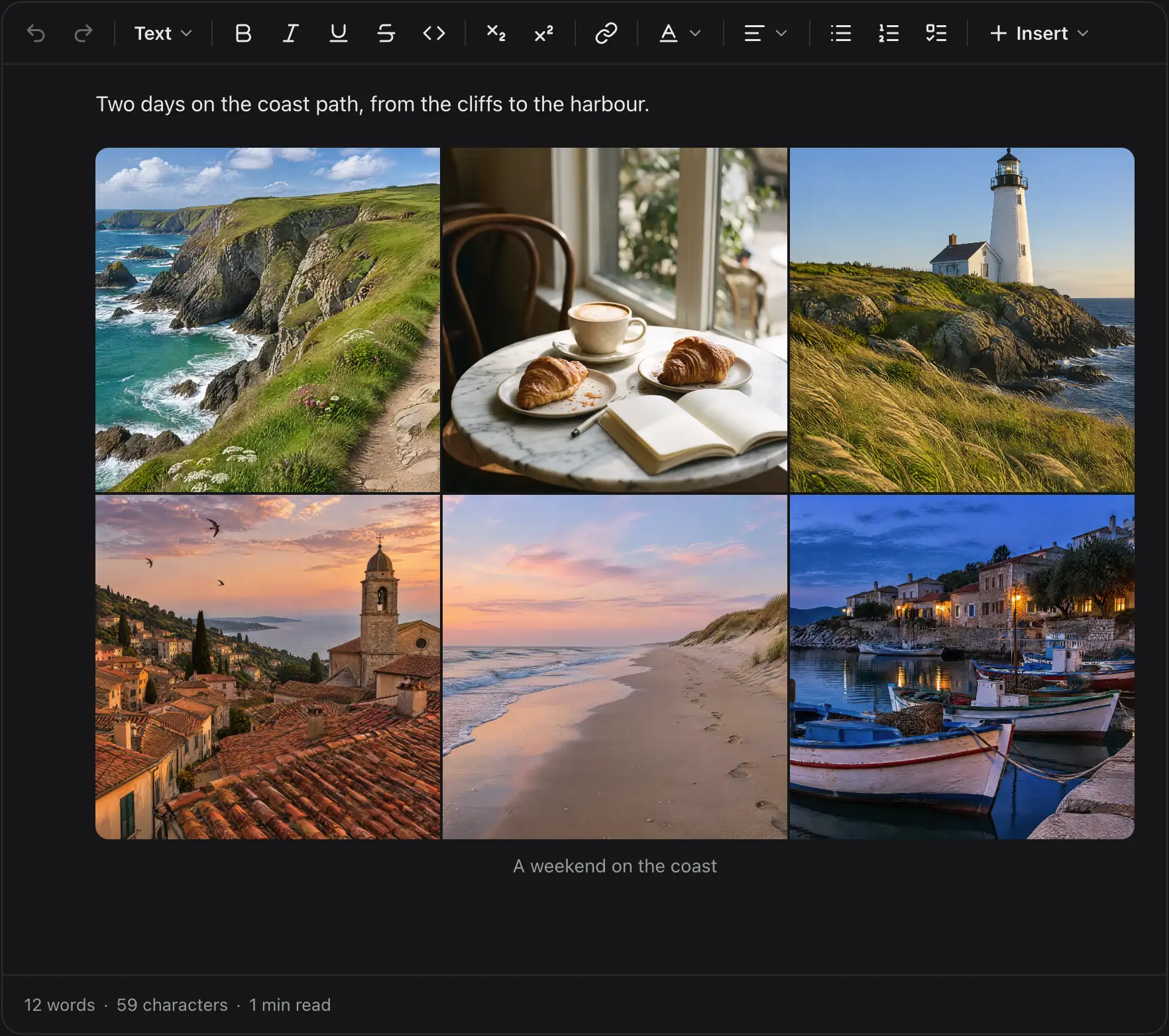
One gallery block holds several photos and shows them as a carousel, a grid, a masonry wall or a collage. Writers switch layouts from the gallery's own toolbar, reorder photos and add alt text and a caption. See Galleries.
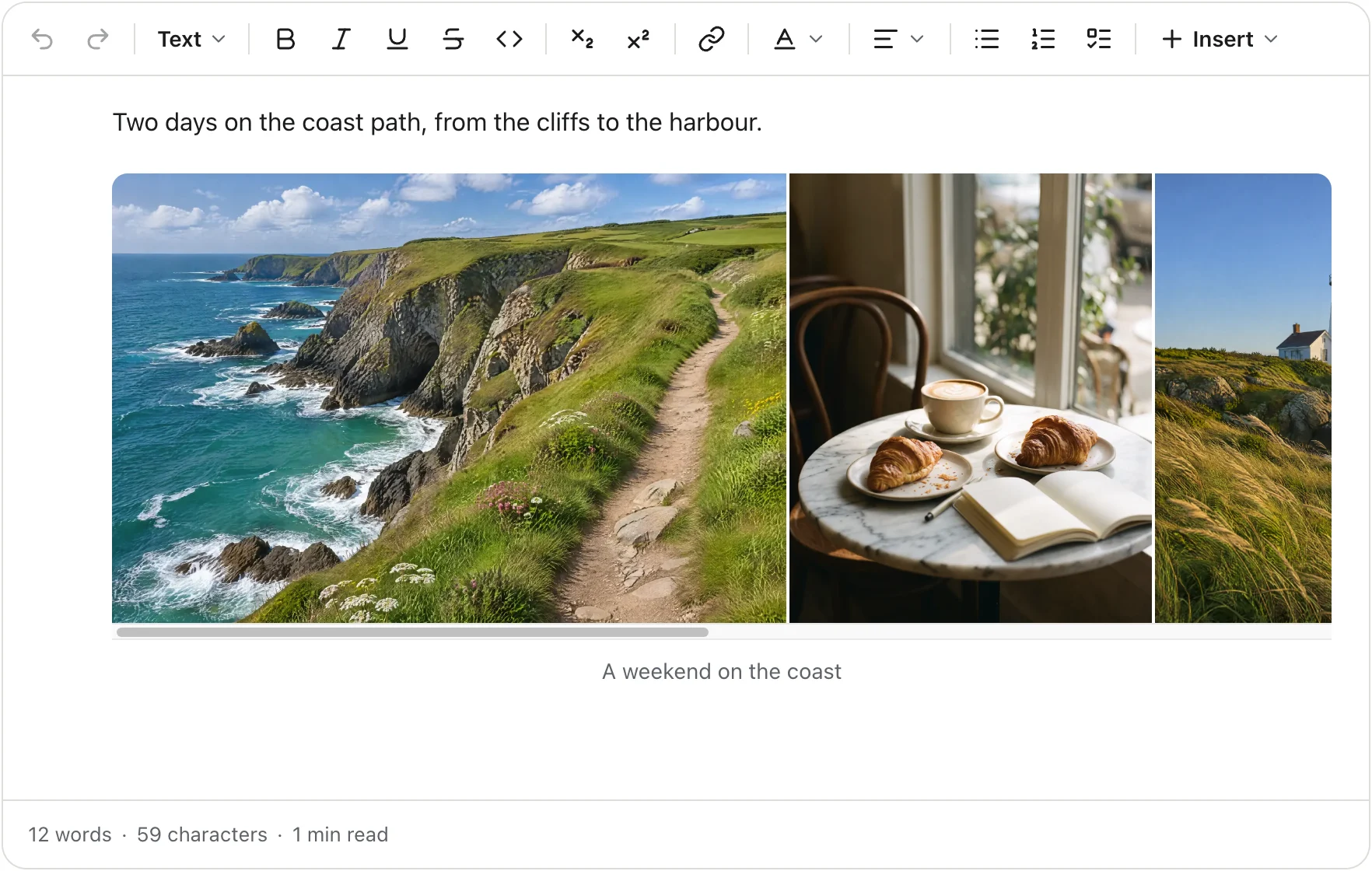
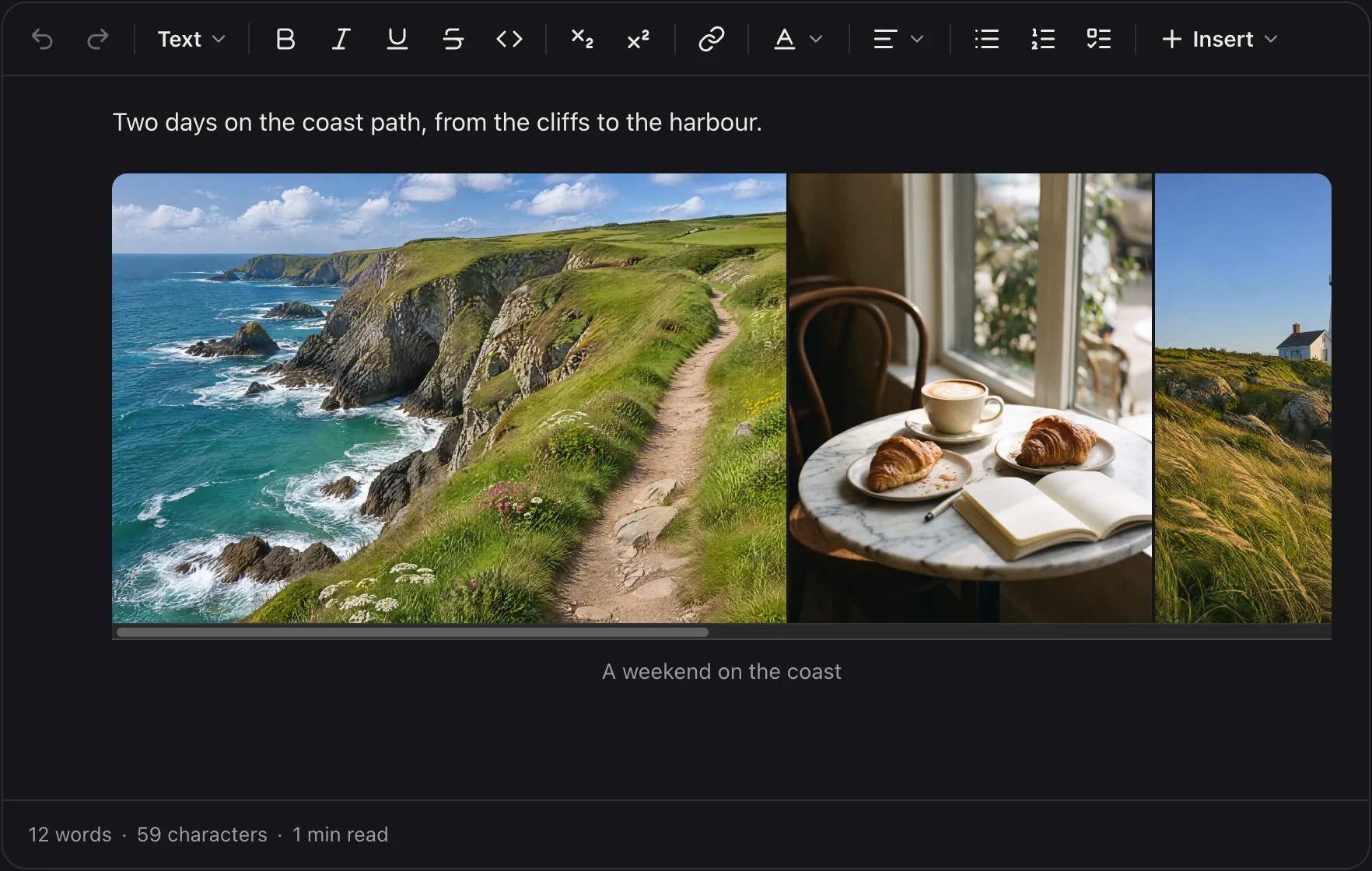
A gallery in the carousel layout: one large coast photo with the next photo peeking in from the sideA gallery in the carousel layout: one large coast photo with the next photo peeking in from the side
Carousel
A gallery in the grid layout: six coast photos in two rows of even square tilesA gallery in the grid layout: six coast photos in two rows of even square tiles
Grid
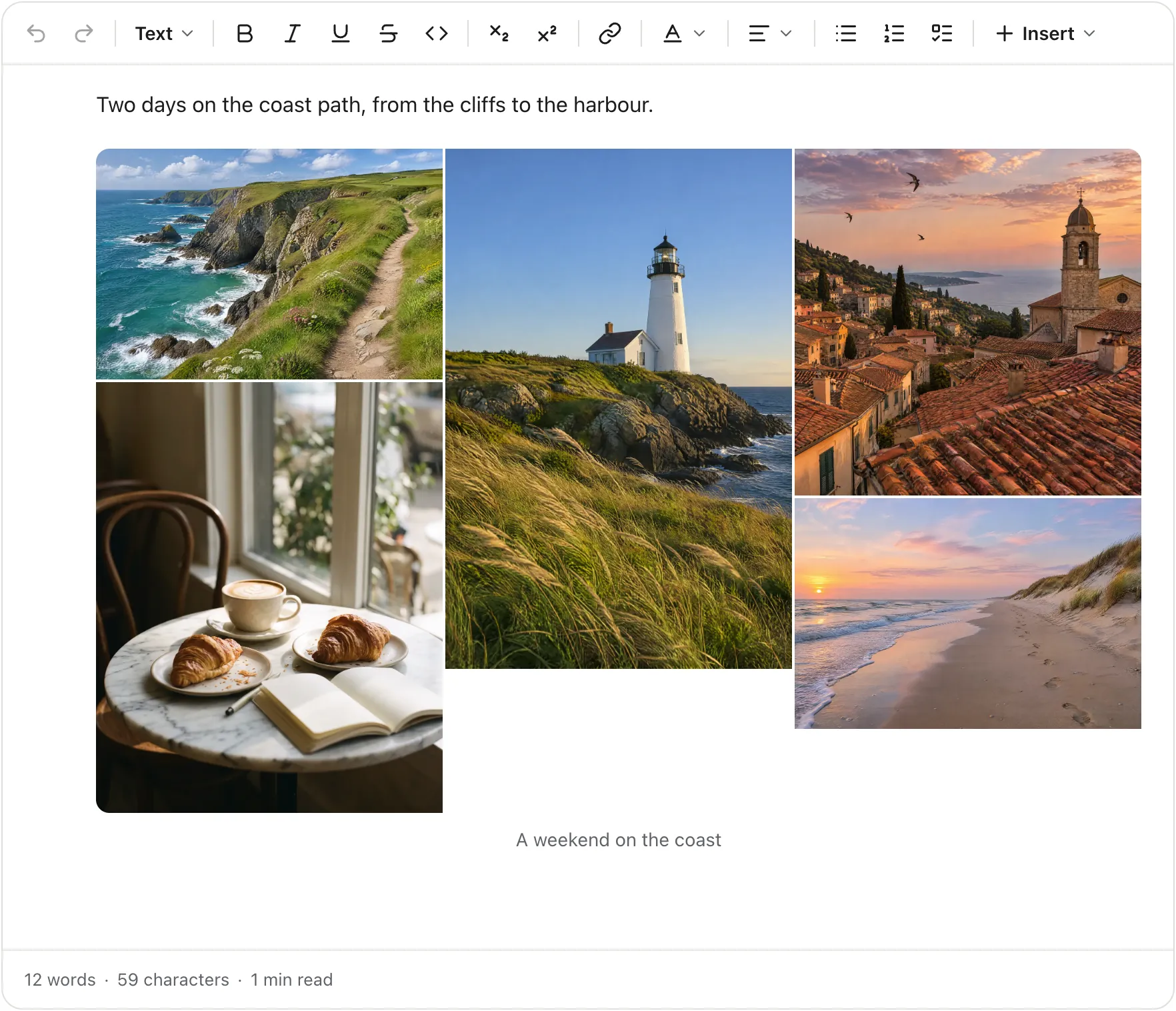
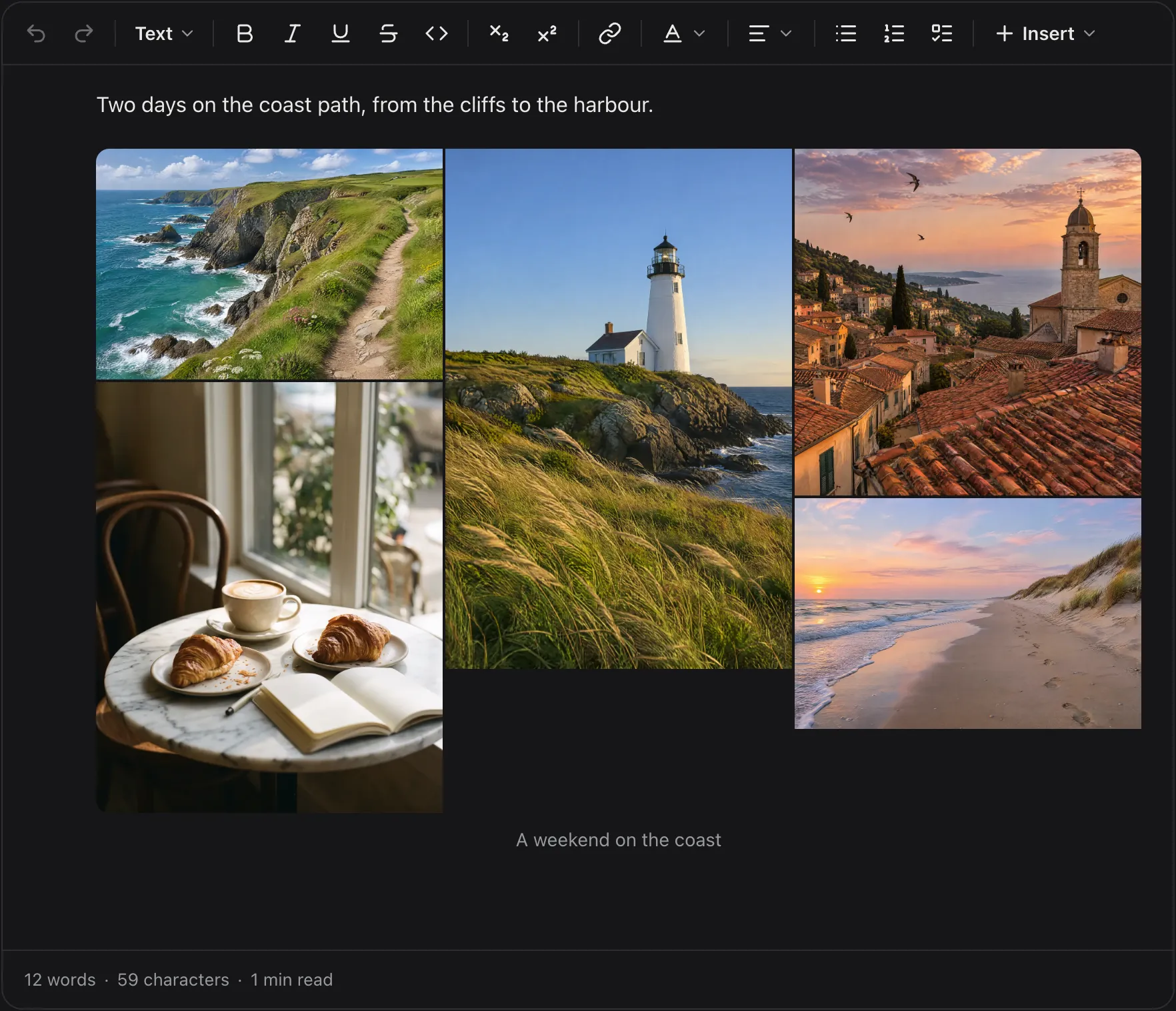
A gallery in the masonry layout: five photos in three columns, each at its own proportionsA gallery in the masonry layout: five photos in three columns, each at its own proportions
Masonry
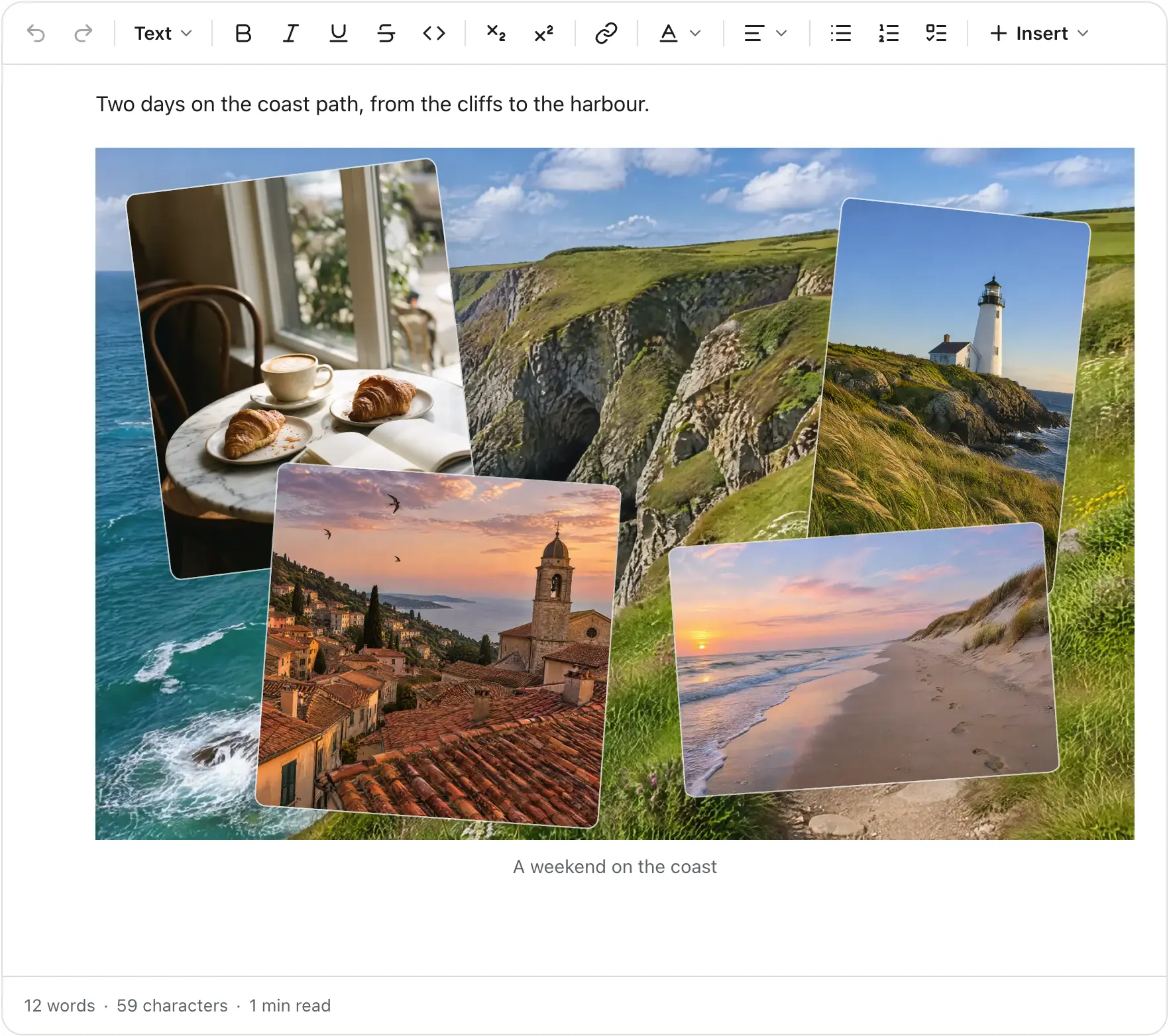
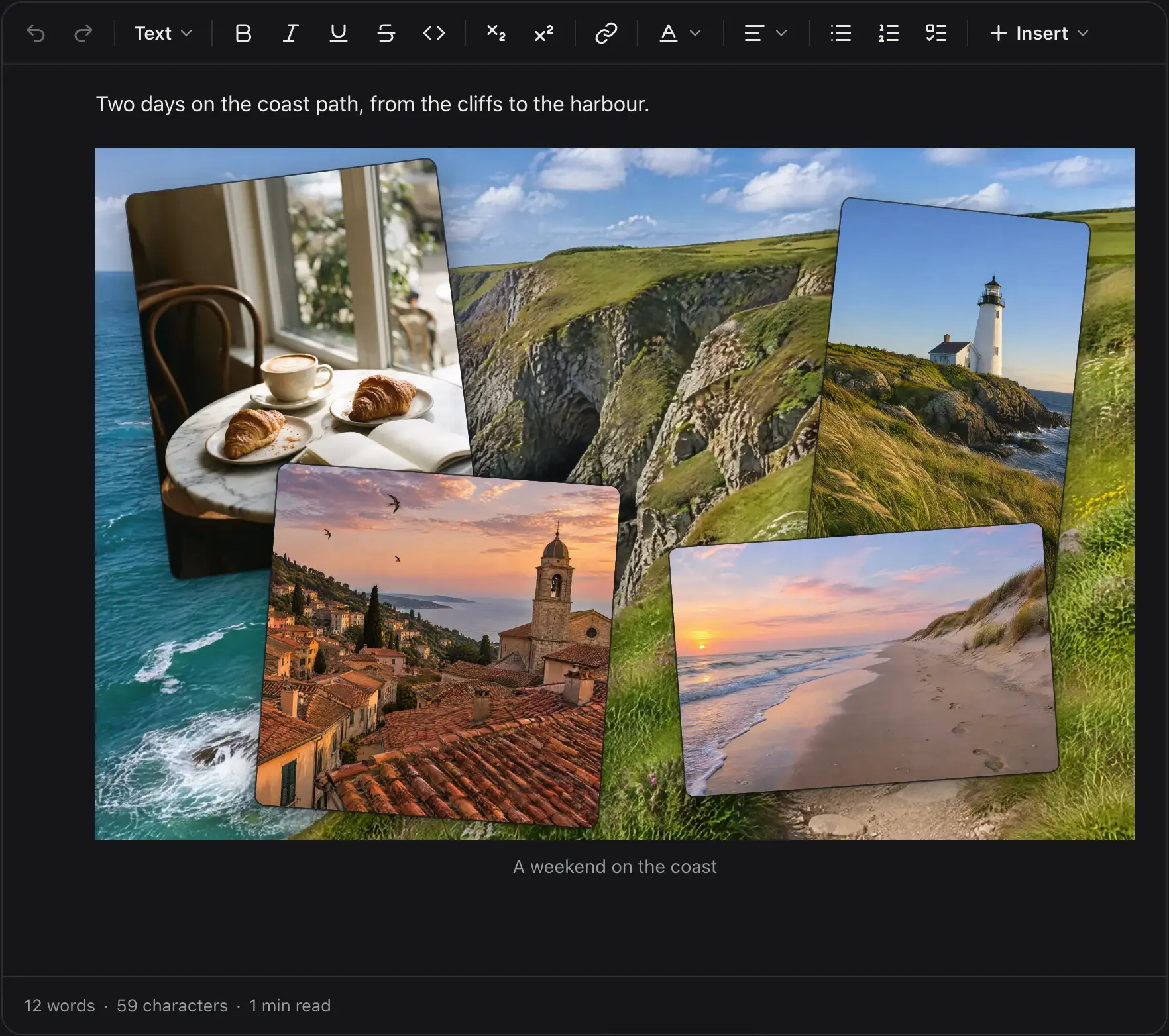
A gallery in the collage layout: four photos tilted and layered over a clifftop background photoA gallery in the collage layout: four photos tilted and layered over a clifftop background photo
Collage

Arrange a collage

In a collage, the first photo is the background and the others sit on it. Arrange the collage lets writers drag each photo into place, resize it and turn it, with a pinch on touch screens.
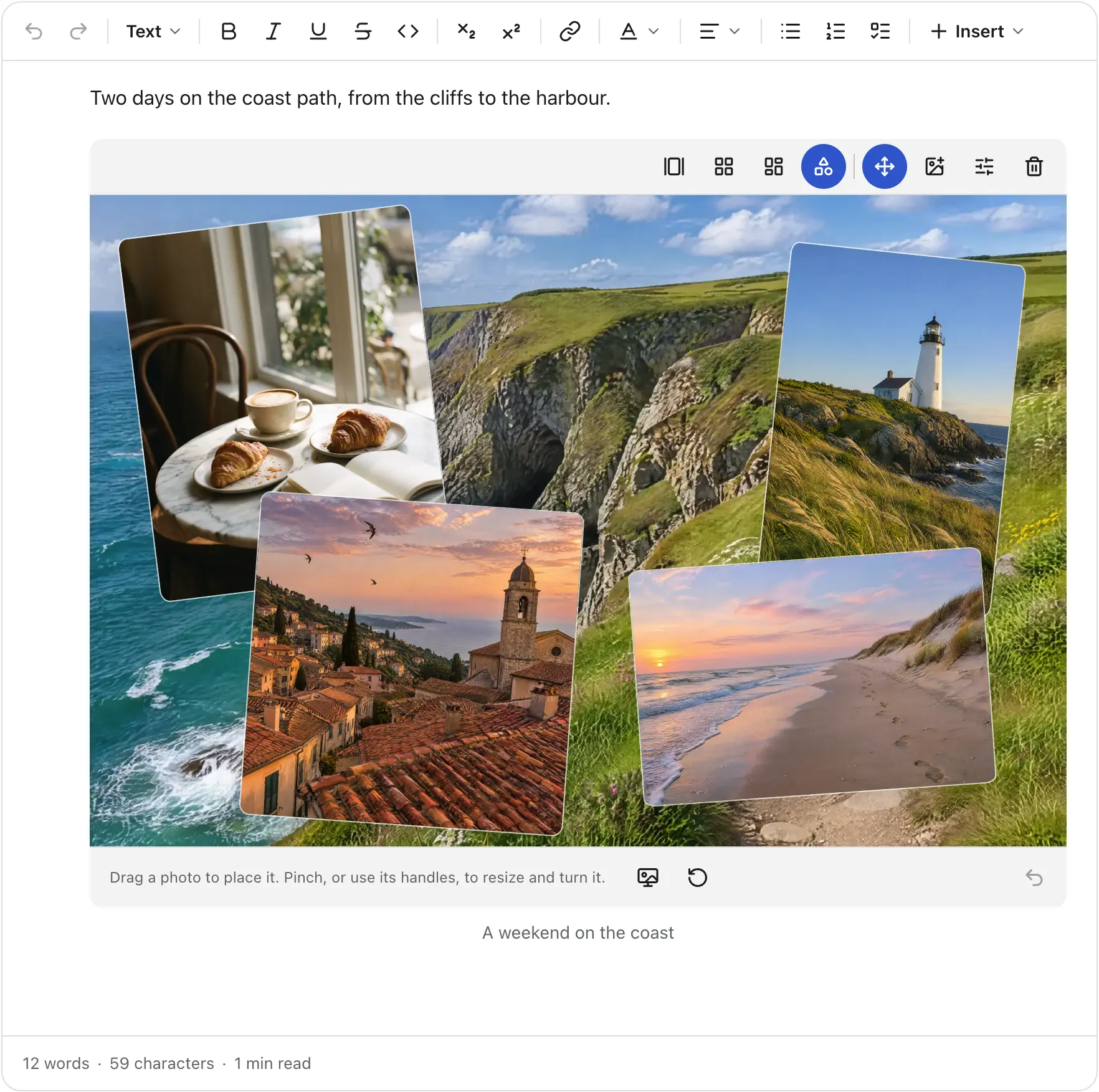
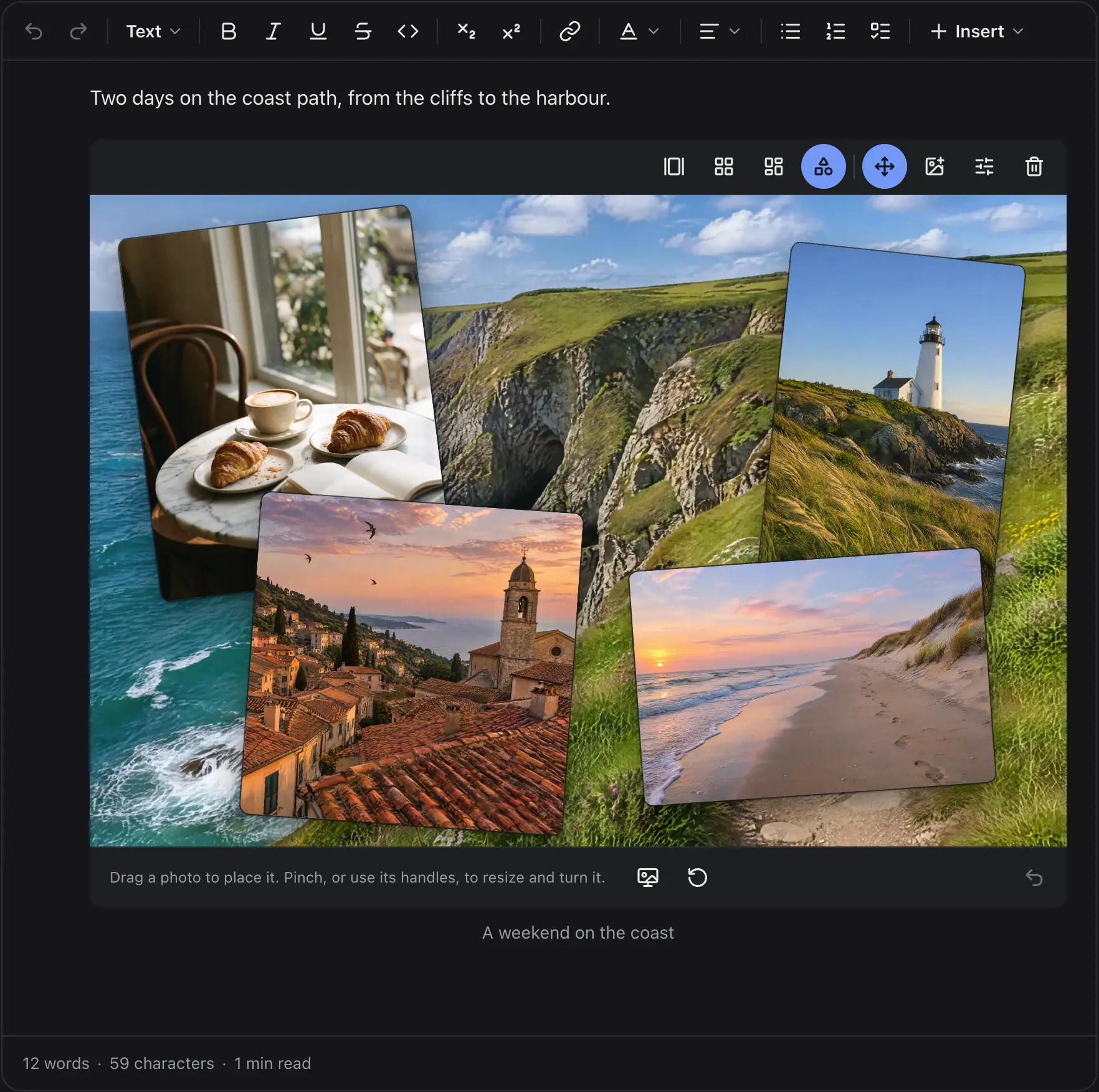
Arranging a collage: the collage editor open with a hint to drag, pinch or use handles to place, resize and turn each photoArranging a collage: the collage editor open with a hint to drag, pinch or use handles to place, resize and turn each photo
The collage editor, open on a five-photo gallery.

Paste a link and the editor picks the block. YouTube and Vimeo links become players, and posts from X, Instagram, TikTok and other providers become embeds. By default, players and embeds load only after a click, so nothing from the provider runs until the reader asks for it. Any other link becomes a card, filled in by your link preview adapter. See Embeds and link previews.
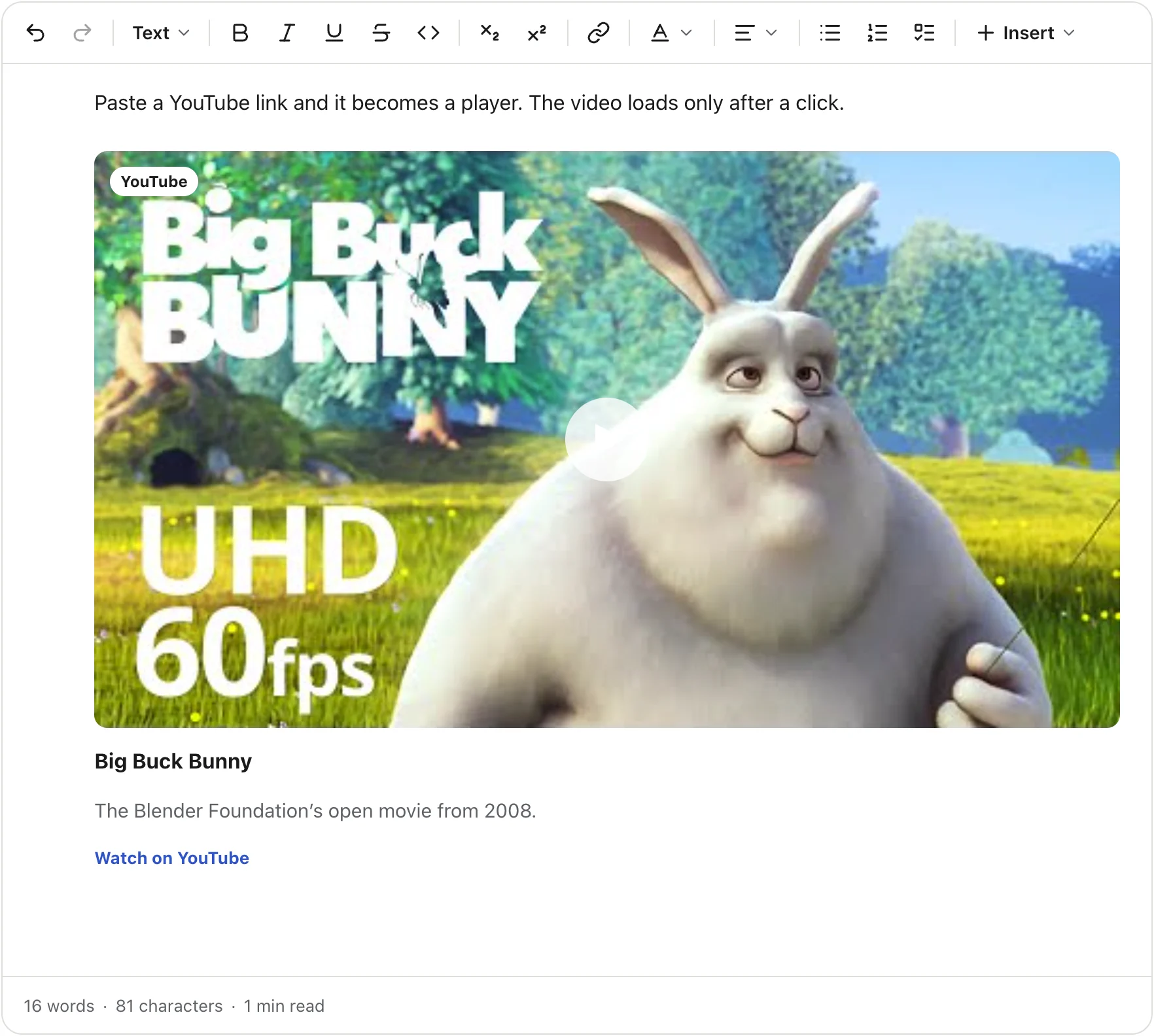
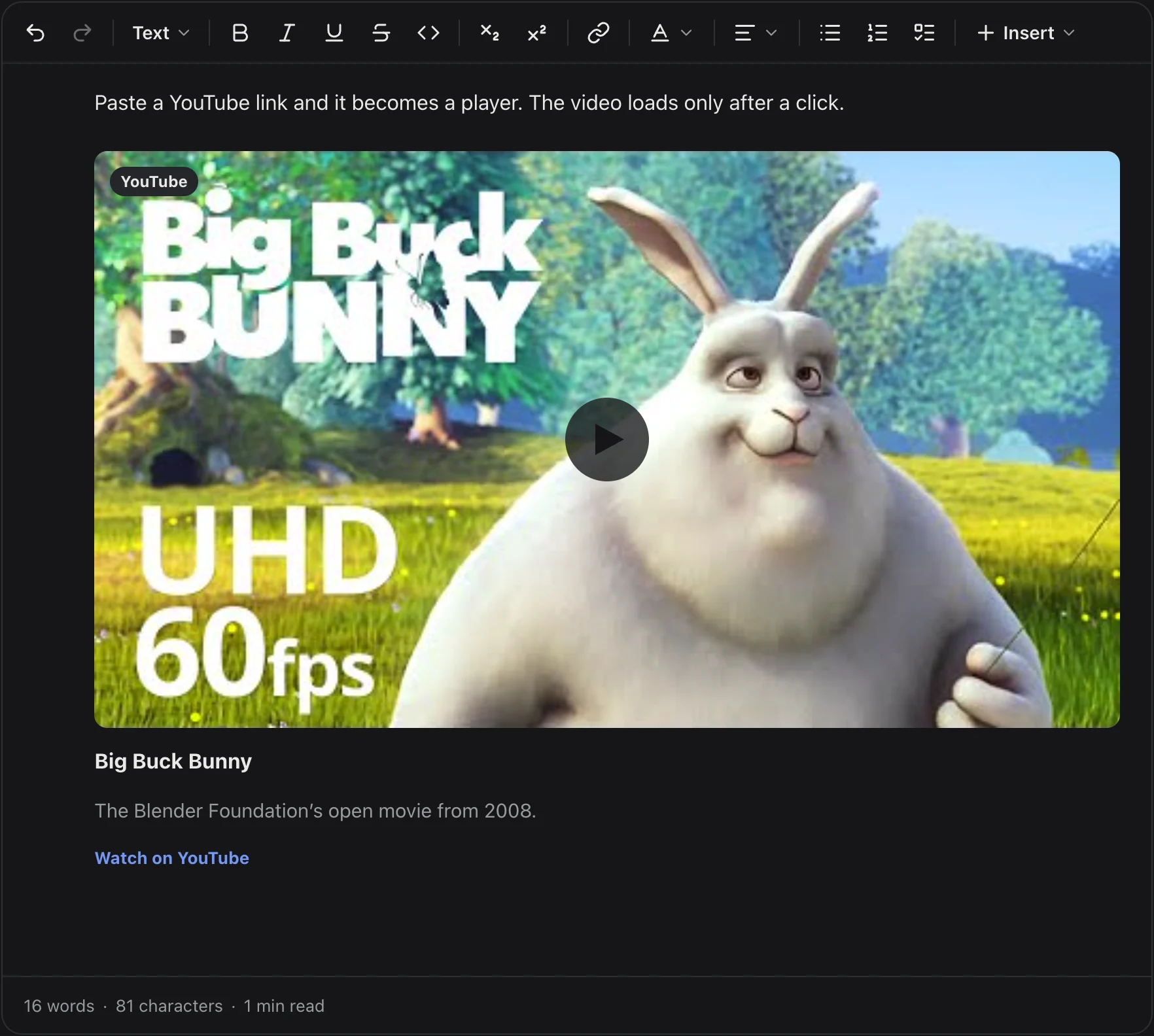
A pasted YouTube link shown as a player with a thumbnail, a title, a description and a Watch on YouTube linkA pasted YouTube link shown as a player with a thumbnail, a title, a description and a Watch on YouTube link
A YouTube link, shown as a player with a title and a description.
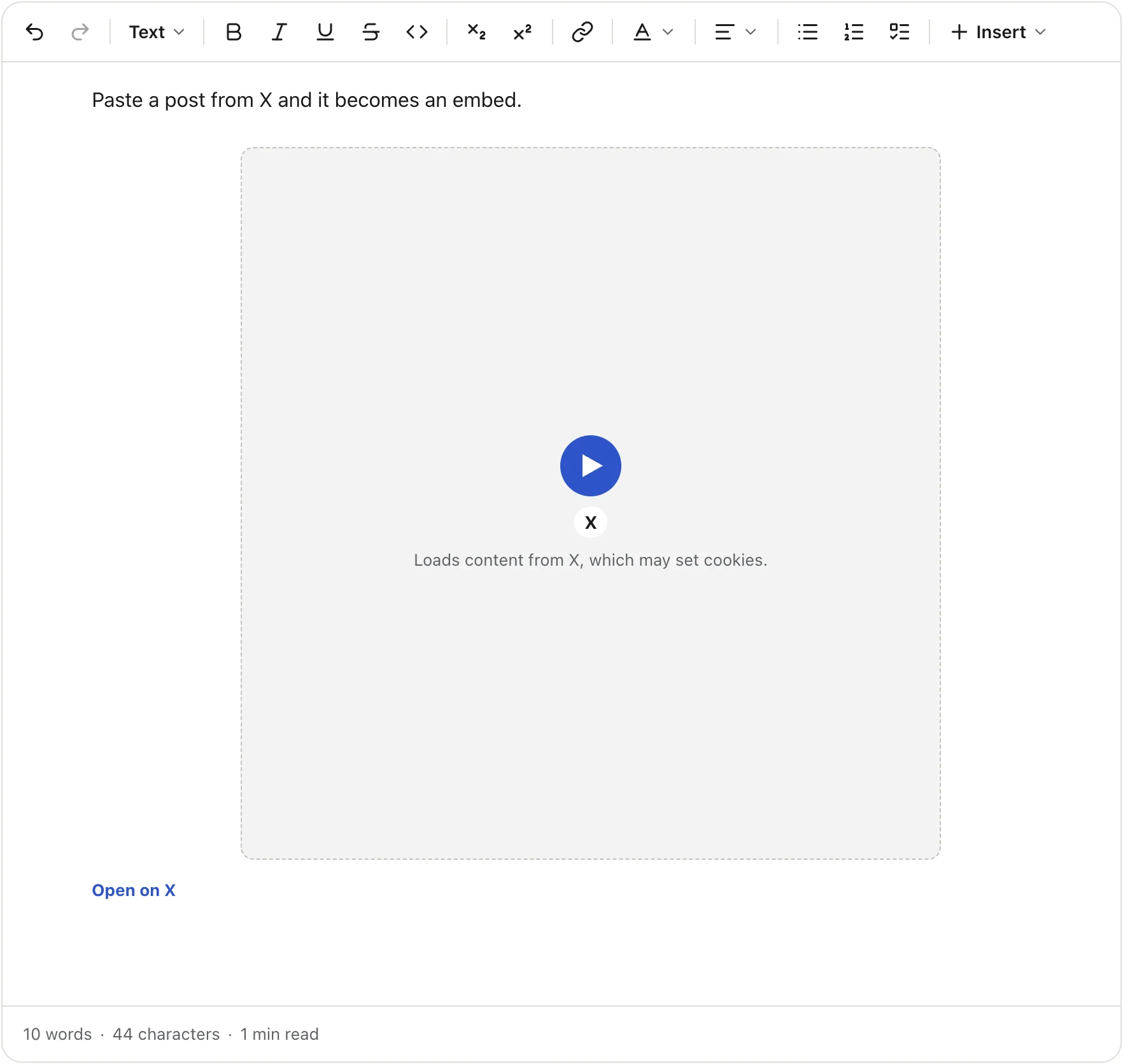
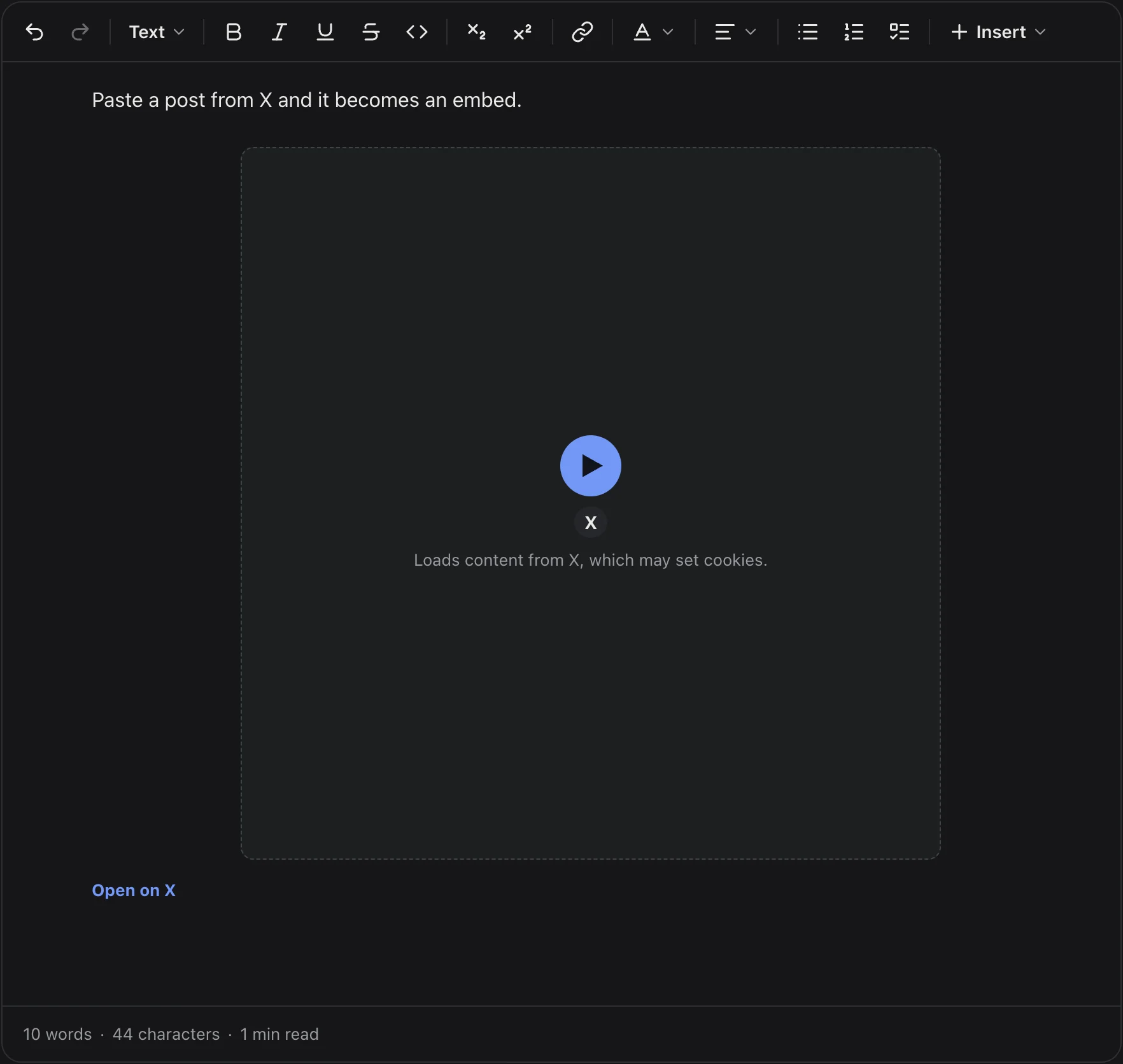
A pasted X post shown as a click-to-load placeholder that says it loads content from X, which may set cookiesA pasted X post shown as a click-to-load placeholder that says it loads content from X, which may set cookies
A post from X, waiting for a click before it loads.
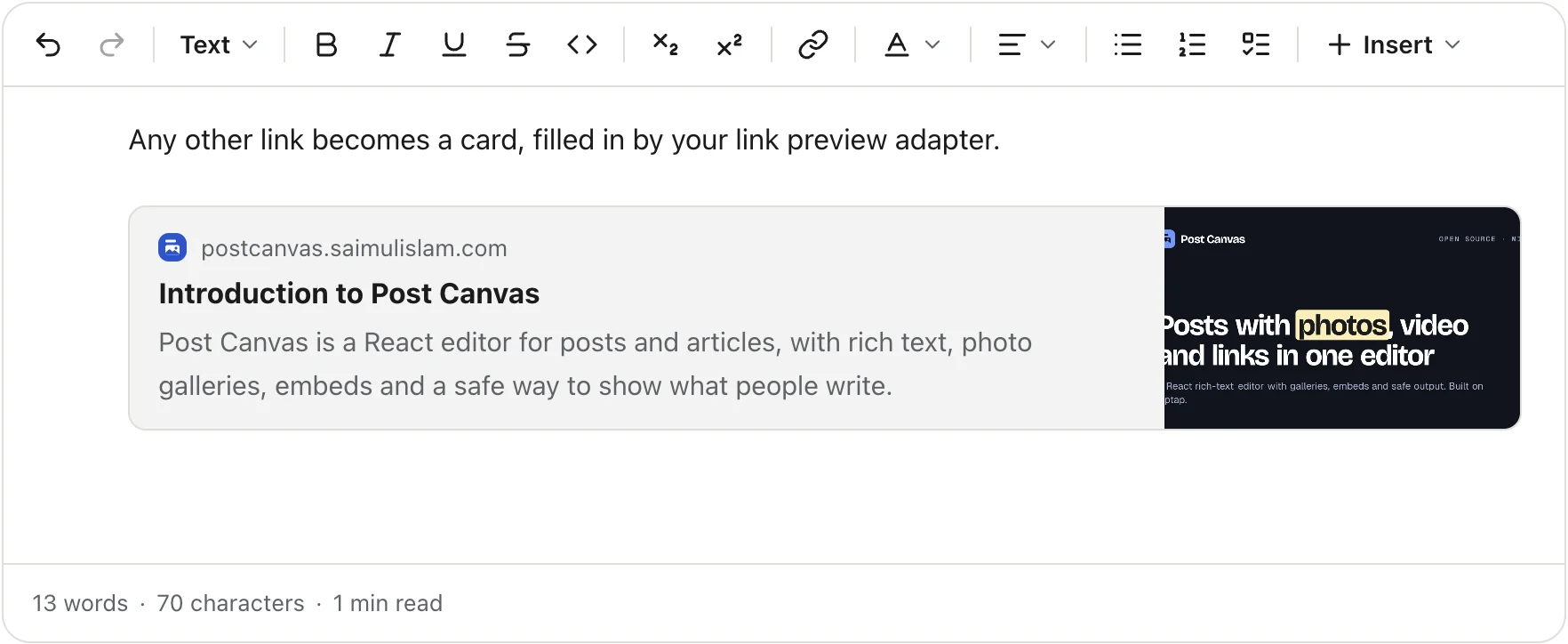
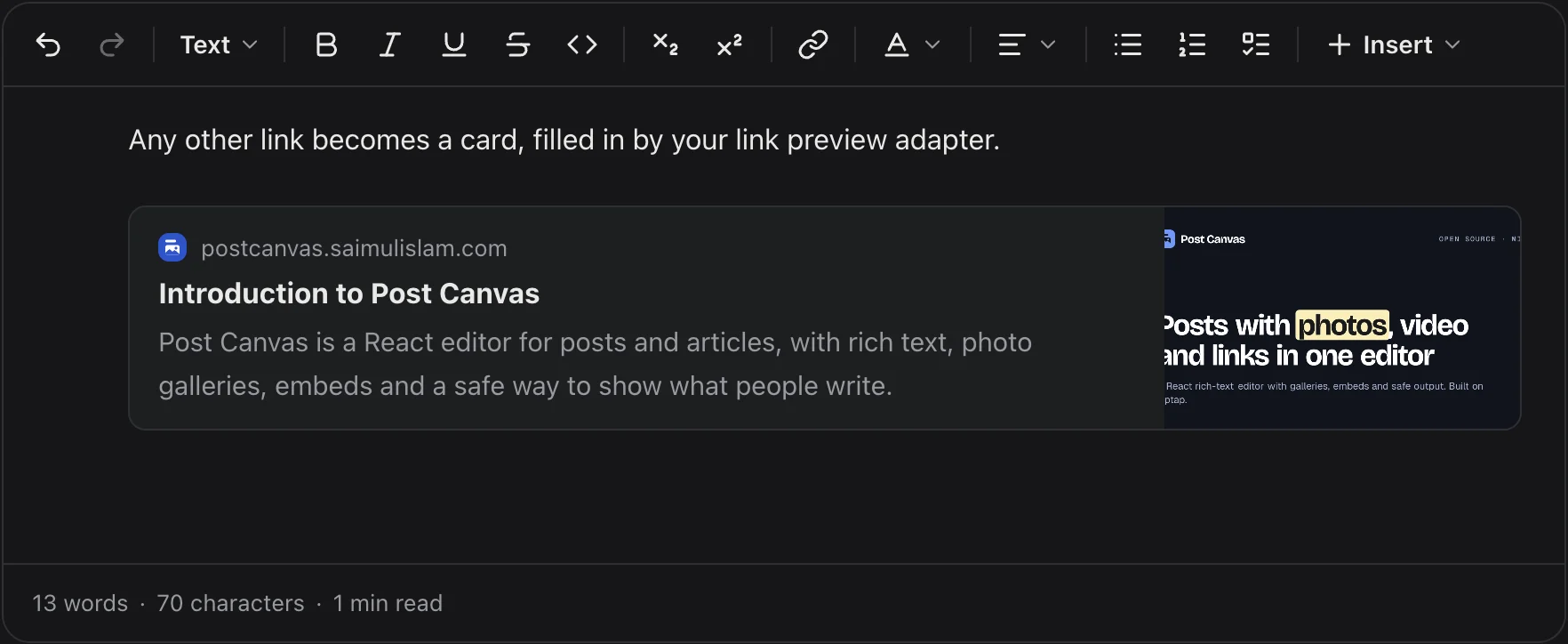
A pasted link shown as a card with the site name, the page title, a description and a preview imageA pasted link shown as a card with the site name, the page title, a description and a preview image
A link card for any other page.

Presets for posts, articles and comments

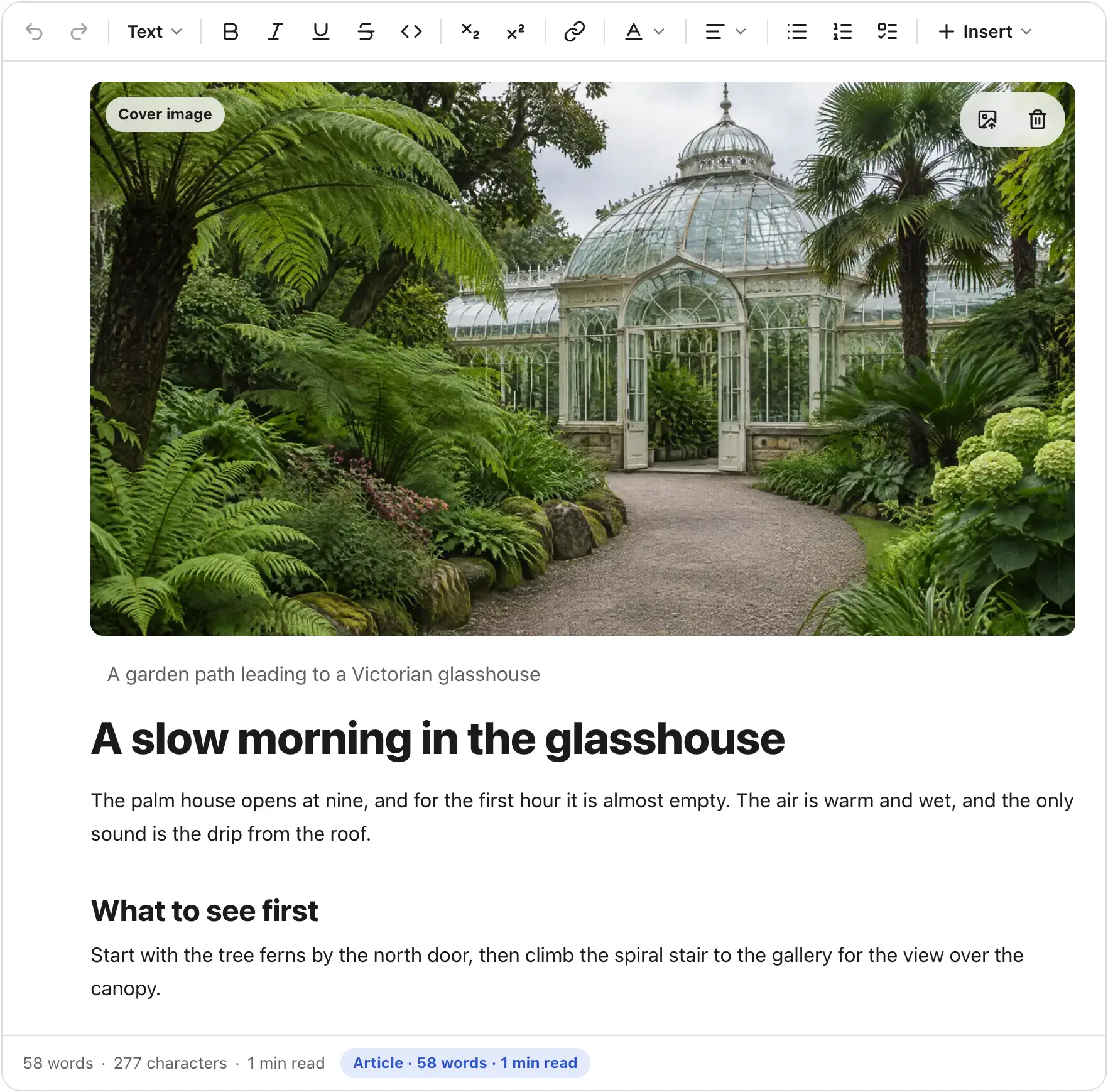
A preset turns on the right parts for the job: social for a post composer, article for long form with a title and a cover, comment for a small reply box, and full for everything. See Presets and features.
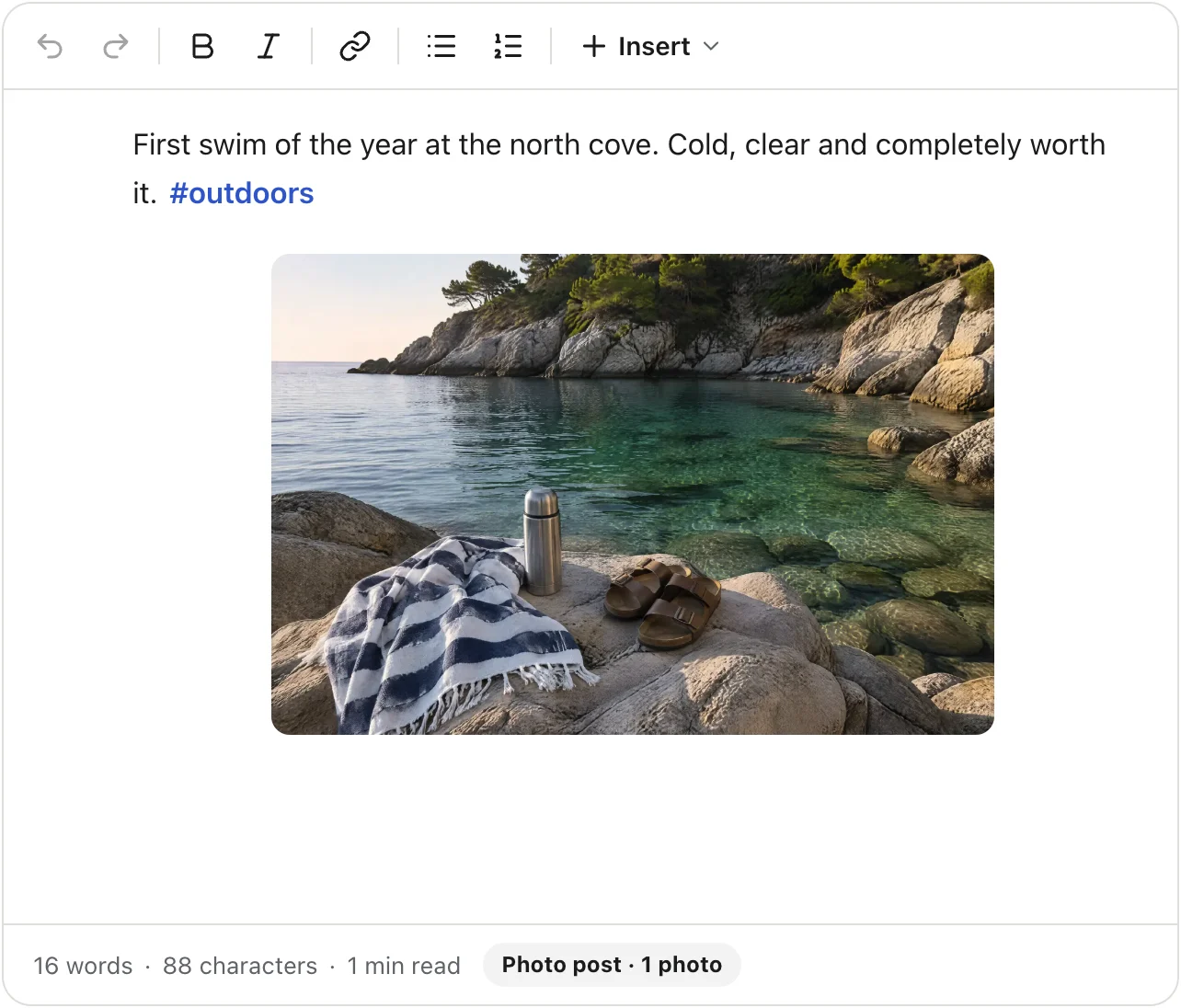
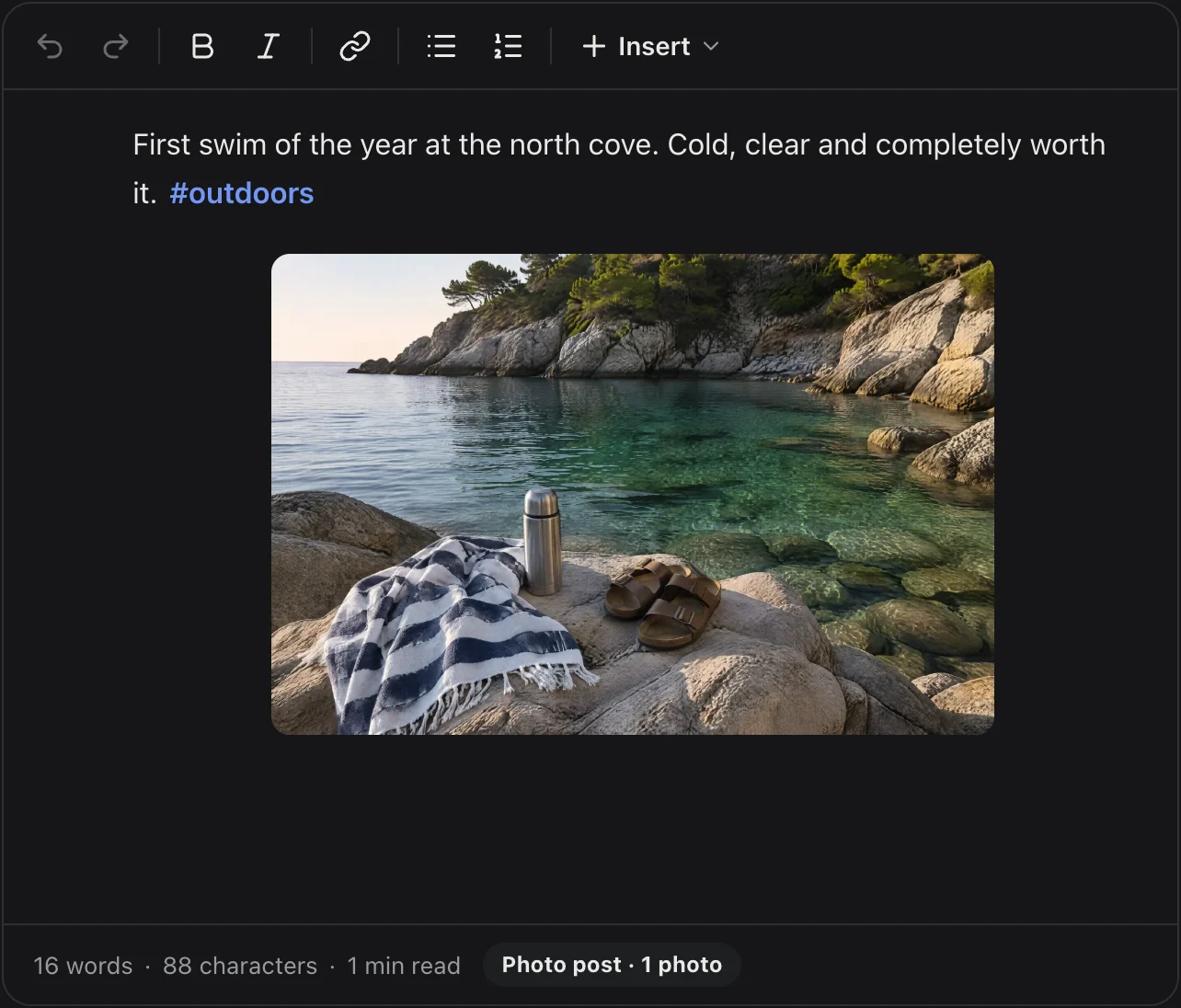
The social preset: a short post with a hashtag and one photo, and a status bar that reads Photo postThe social preset: a short post with a hashtag and one photo, and a status bar that reads Photo post
social
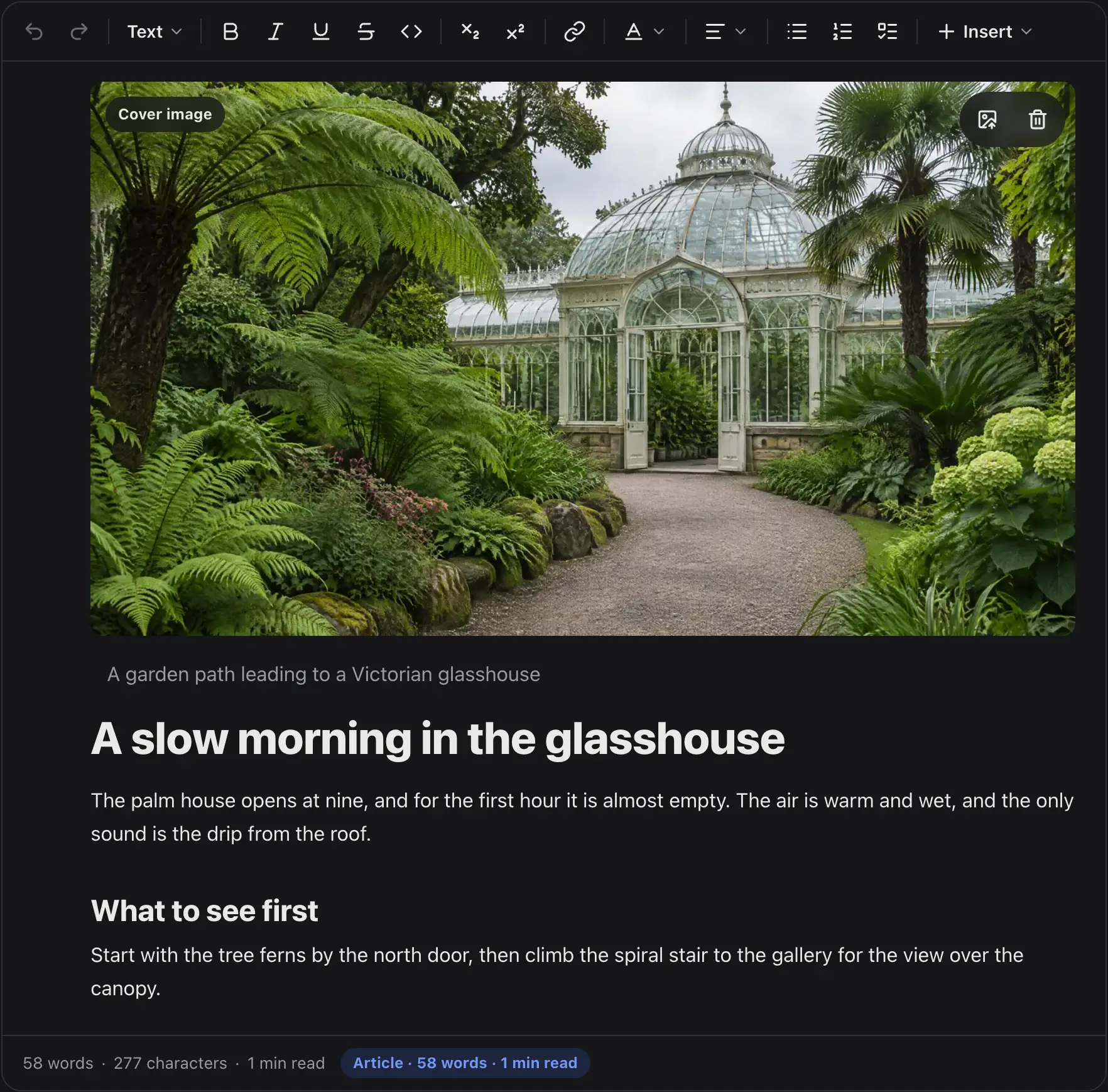
The article preset: a cover image, a large title, body text and a heading, with an Article word count in the status barThe article preset: a cover image, a large title, body text and a heading, with an Article word count in the status bar
article
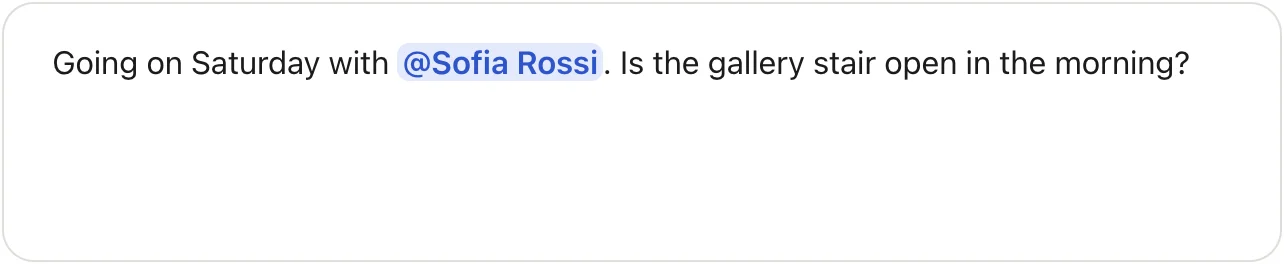
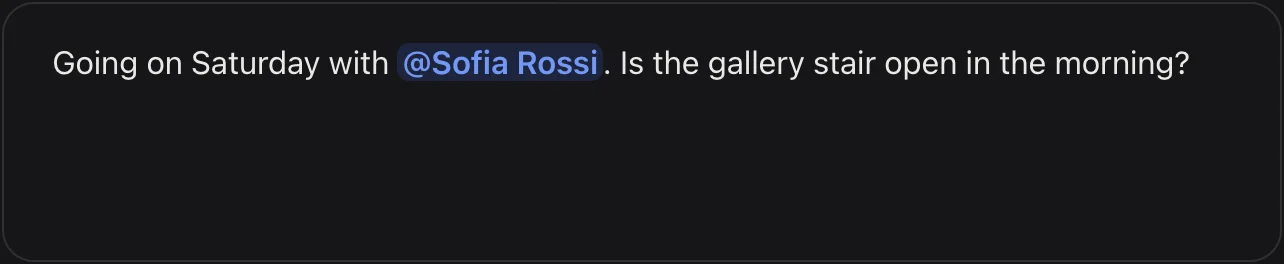
The comment preset: a small one-line box with a reply that mentions another personThe comment preset: a small one-line box with a reply that mentions another person
comment

Output as JSON, HTML and Markdown

The editor saves Tiptap JSON. renderToHTML() and PostCanvasView show it on your server without the editor, and toMarkdown() and toPlainText() convert it. See Rendering.
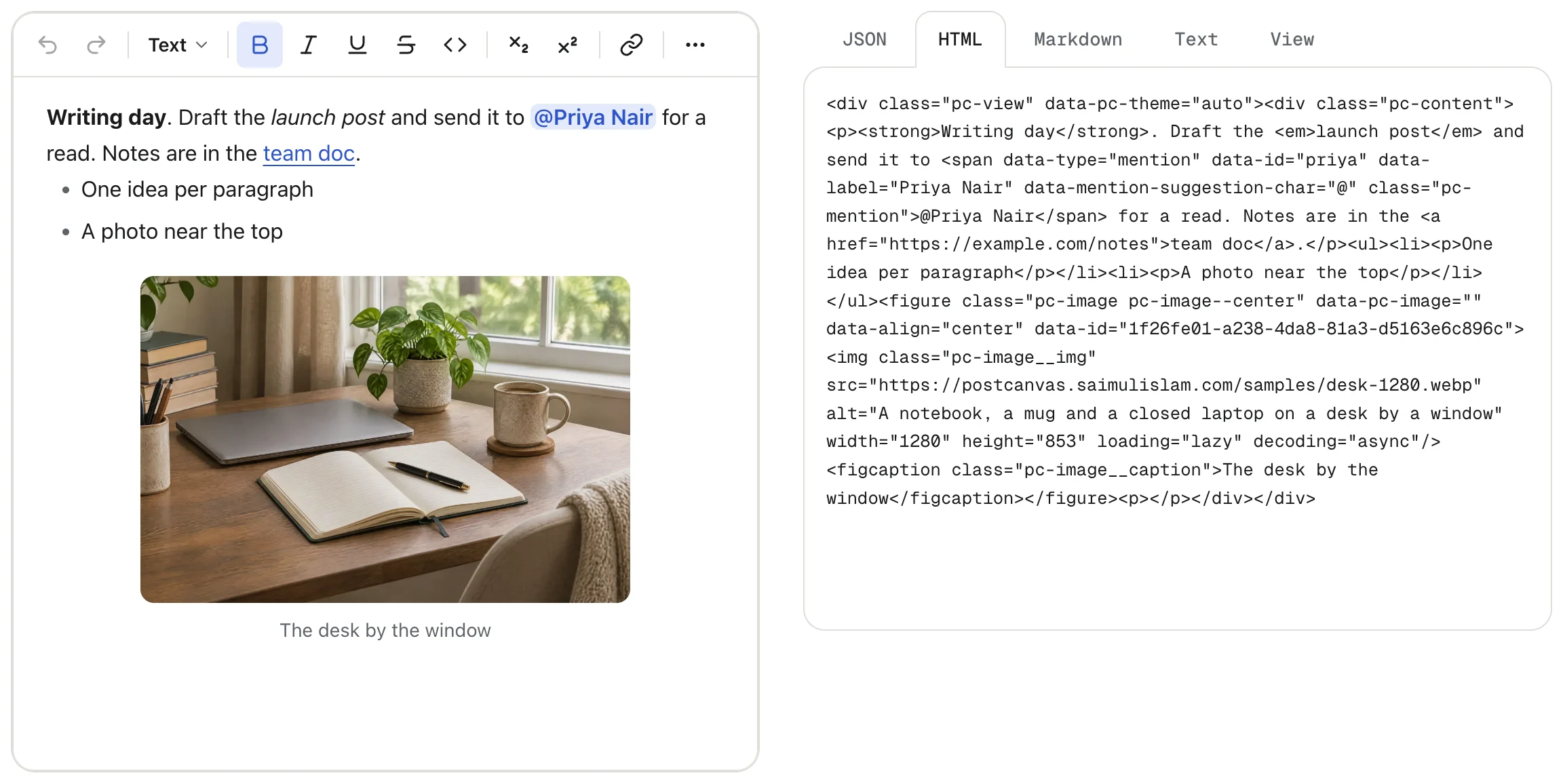
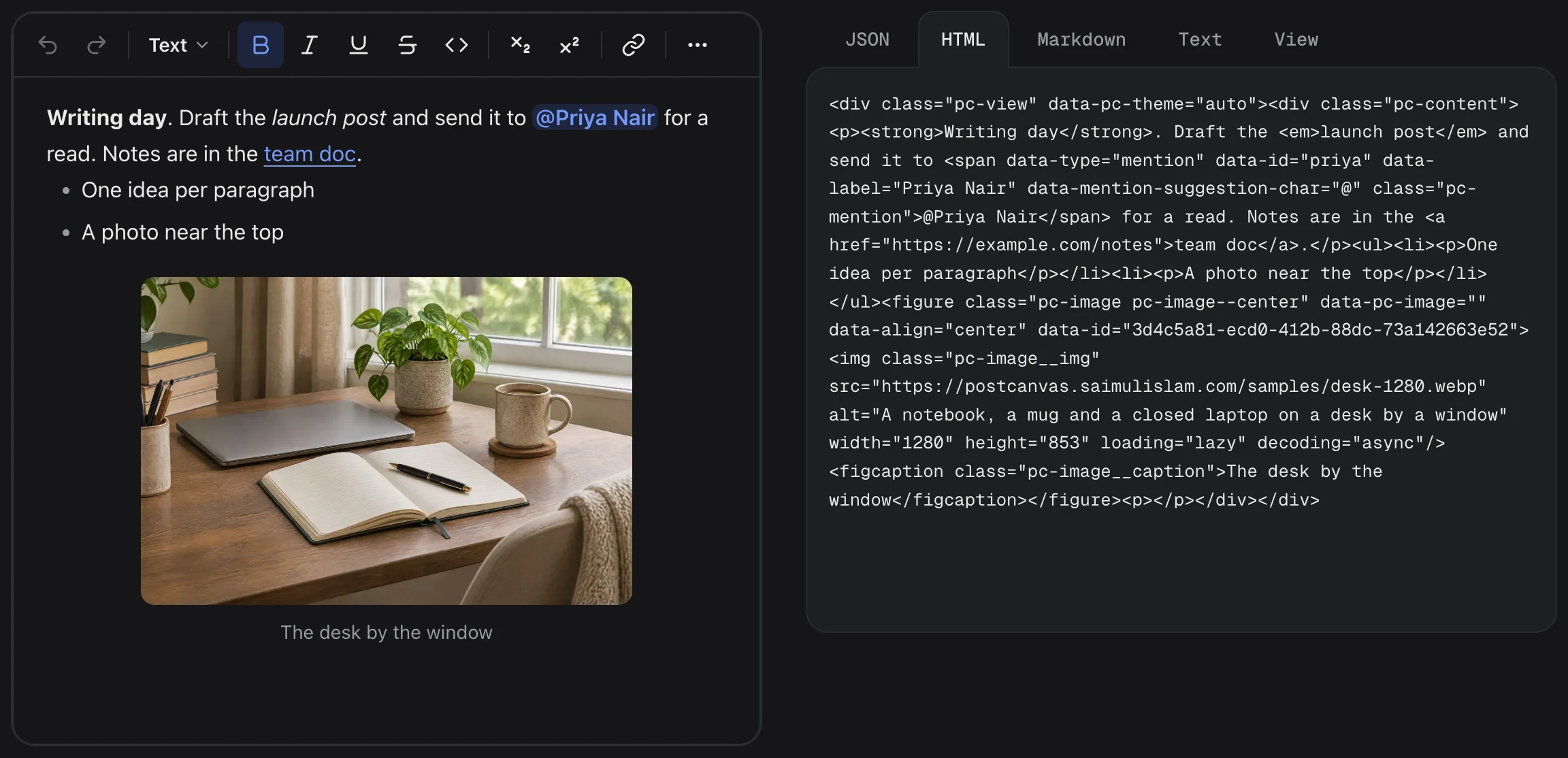
A document in the editor next to its HTML output from renderToHTMLA document in the editor next to its HTML output from renderToHTML
The same document as HTML. The JSON and Markdown tabs show the other formats.

Sanitize what the browser sends

sanitizeDocument() uses the same schema as the editor. It removes unsafe links, photos with unsafe sources, nodes the schema doesn't know and bad embed ids, and reports each removal. See Security.
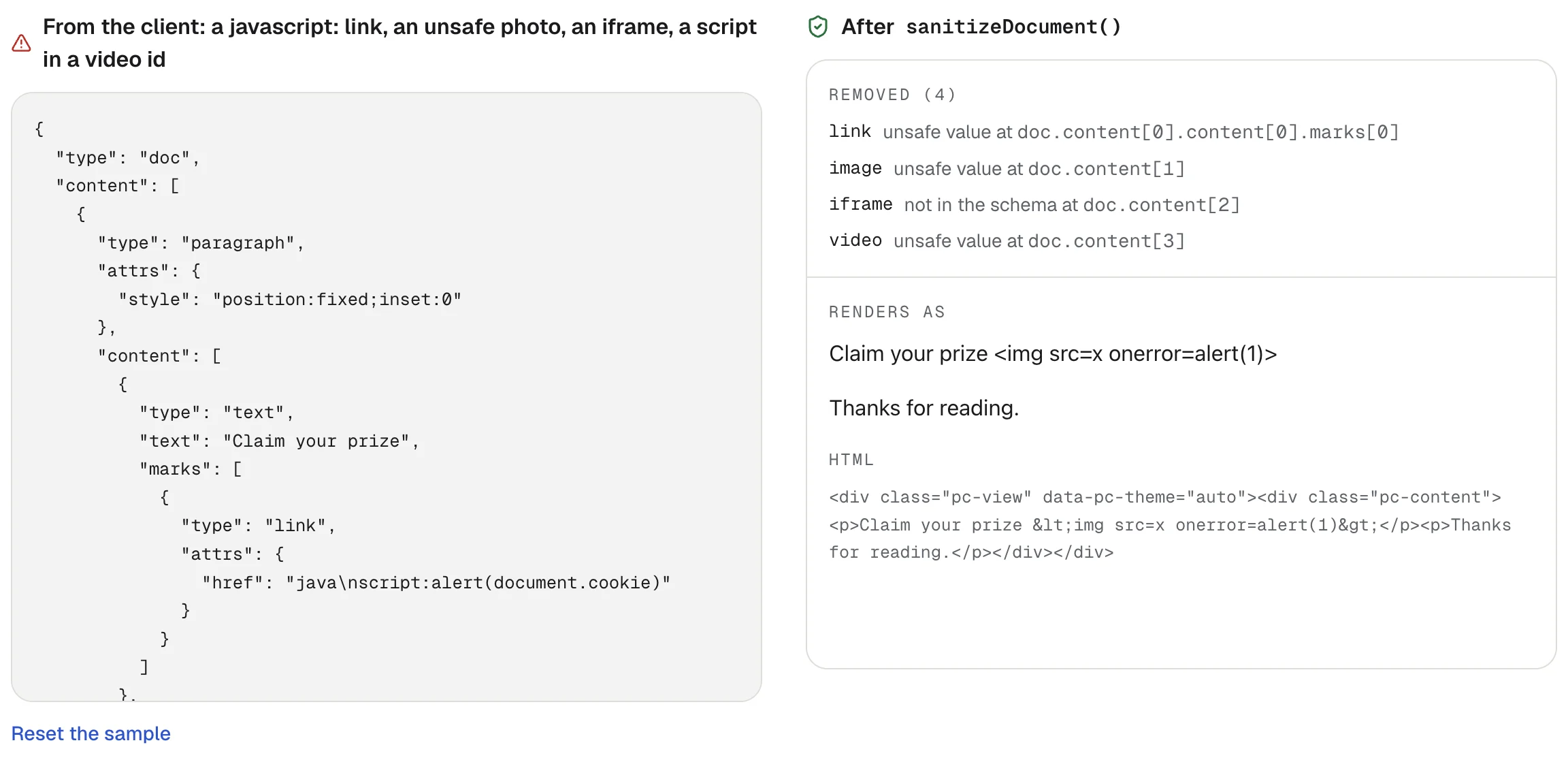
A hostile document with a javascript: link, an unsafe photo, an iframe and a script in a video id, next to what sanitizeDocument removed and the safe HTML it rendersA hostile document with a javascript: link, an unsafe photo, an iframe and a script in a video id, next to what sanitizeDocument removed and the safe HTML it renders
A hostile document on the left. On the right, what was removed and the safe HTML that renders.

Phone width, and light and dark themes

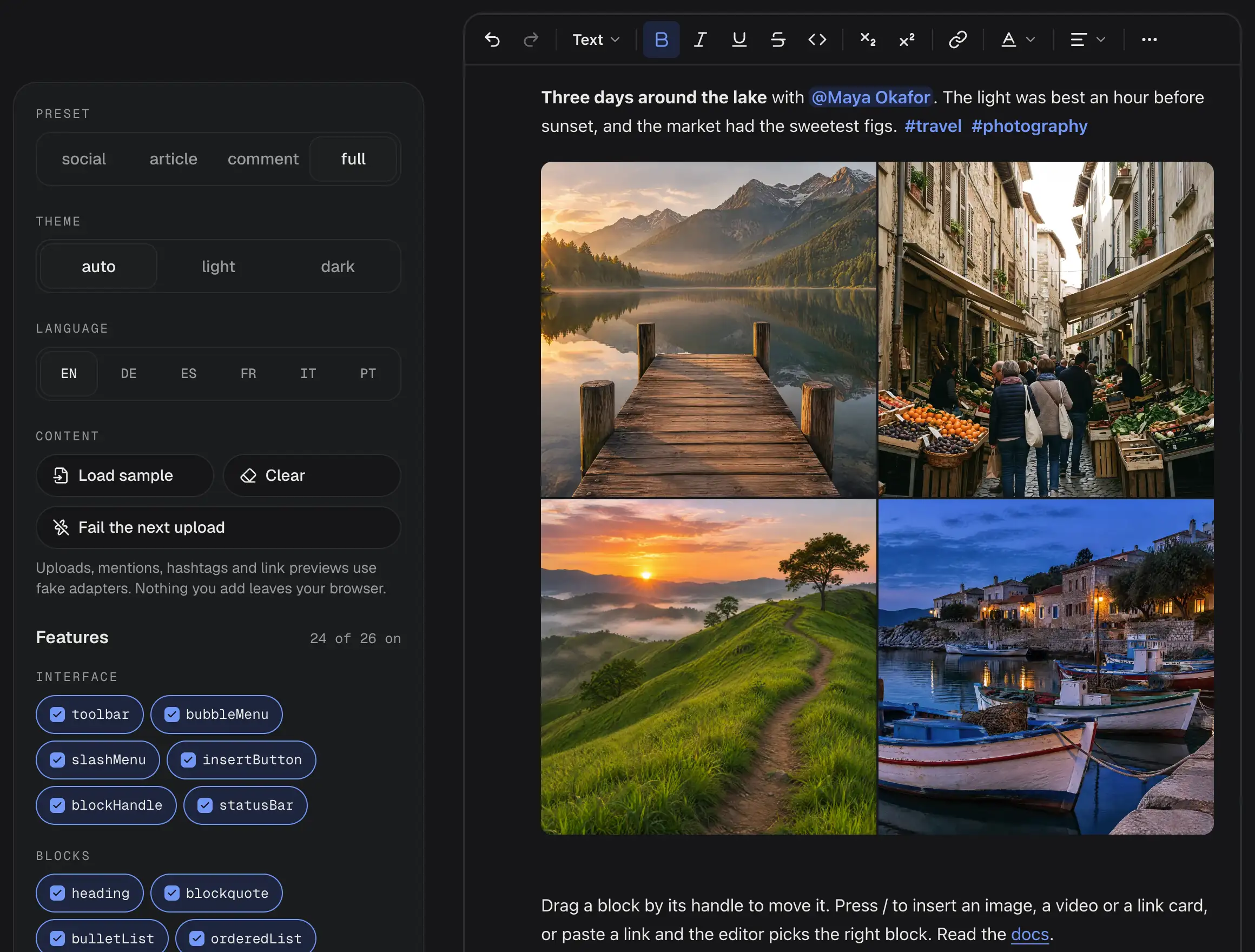
The editor works at phone width with touch, and follows your light or dark theme through CSS tokens. See Theming.
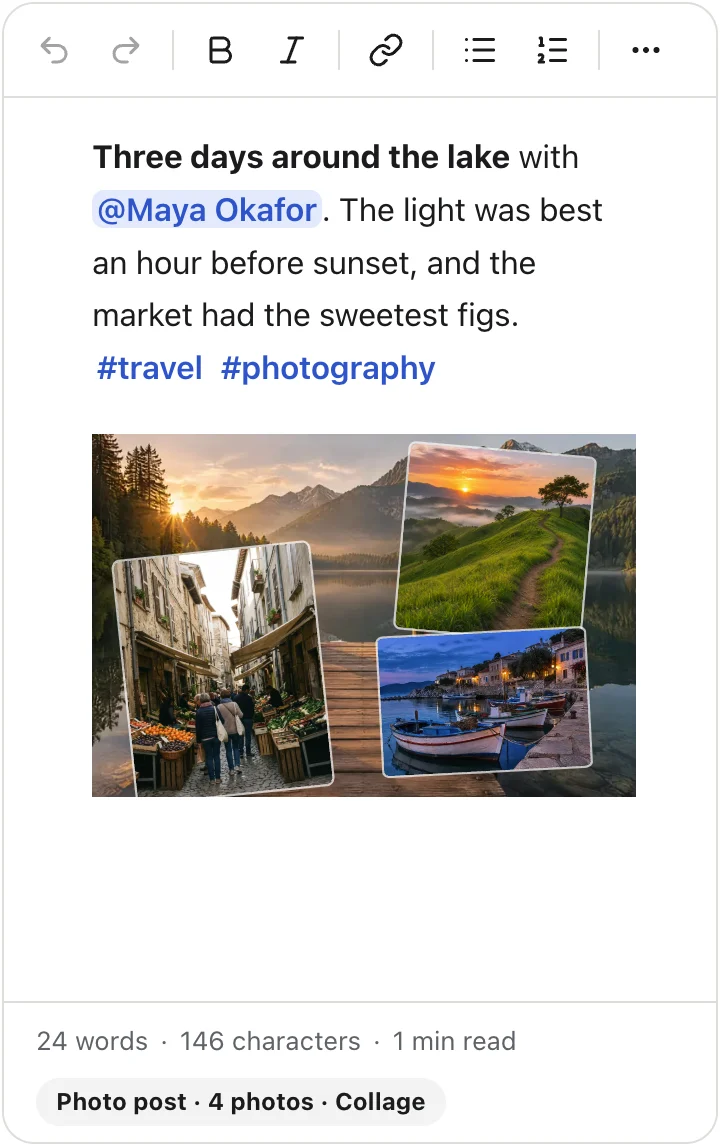
The editor at phone width with the social preset, a mention, hashtags and a collageThe editor at phone width with the social preset, a mention, hashtags and a collage
The social preset at phone width.
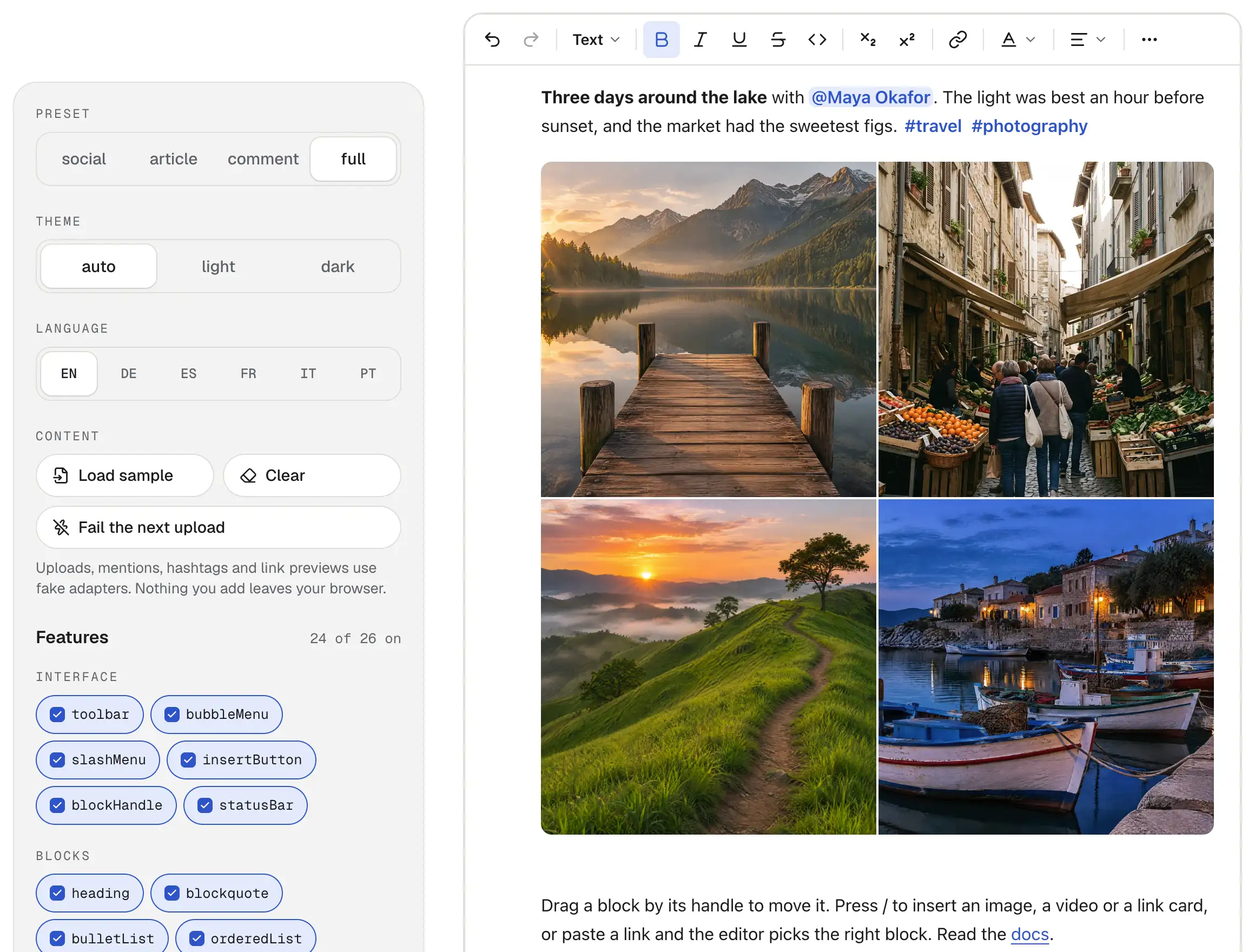
The playground: switches for preset, theme, language and features beside a live editor with a sample postThe playground: switches for preset, theme, language and features beside a live editor with a sample post
The playground, where you can switch preset, theme, language and features.

Not yet

Real-time collaboration, comments, AI features, emoji shortcodes, right-to-left layouts, and Vue and Angular wrappers are not built yet. The roadmap lists them.

On this page