Tiptap images
Tiptap image upload, resize and galleries for React
Tiptap’s Image extension shows an image from a URL. Post Canvas, built on Tiptap, adds the rest: an upload adapter with progress, paste and drop, image widths, and galleries in four layouts that render to safe HTML on your server.
npm install post-canvas- Layouts
- 4
- Upload
- Your storage
- Licence
- MIT
- React
- 18.2 and 19
Compare
Tiptap’s image extensions and Post Canvas
| Feature | Post Canvas | Tiptap Image and FileHandler |
|---|---|---|
| Upload to your storage | An upload adapter: one upload() function for S3, Cloudinary or your route[5] | Not included; the Image extension takes a URL[1] |
| Paste and drop files | Built in, with type and size checks[5] | FileHandler catches the events; you write the upload[2] |
| Progress, cancel and retry | Built in, from onProgress and an AbortSignal[5] | Yours to build[2] |
| Resize | Five widths for an image (centre, wide, full, left, right); collage photos resize by drag or pinch[7][6] | A resize option on the Image extension since 3.10.0[3] |
| Galleries | Carousel, grid, masonry and collage, with reordering, alt text and captions[6] | No gallery extension among the open-source packages[4] |
| HTML on the server | renderToHTML() sanitizes first and needs no DOM[8][10] | getHTML() in the editor, or a static renderer[9] |
Sources
- [1]Tiptap docs: Image extension, which does not upload
- [2]Tiptap docs: FileHandler, drops and pastes but no server upload
- [3]Tiptap Image changelog: the resize option, added in 3.10.0
- [4]Tiptap packages in the open-source repository
- [5]Post Canvas docs: image uploads
- [6]Post Canvas docs: image galleries
- [7]Post Canvas docs: image alignment
- [8]Post Canvas docs: rendering documents
- [9]Tiptap docs: JSON and HTML output
- [10]Post Canvas docs: security model
Live demo
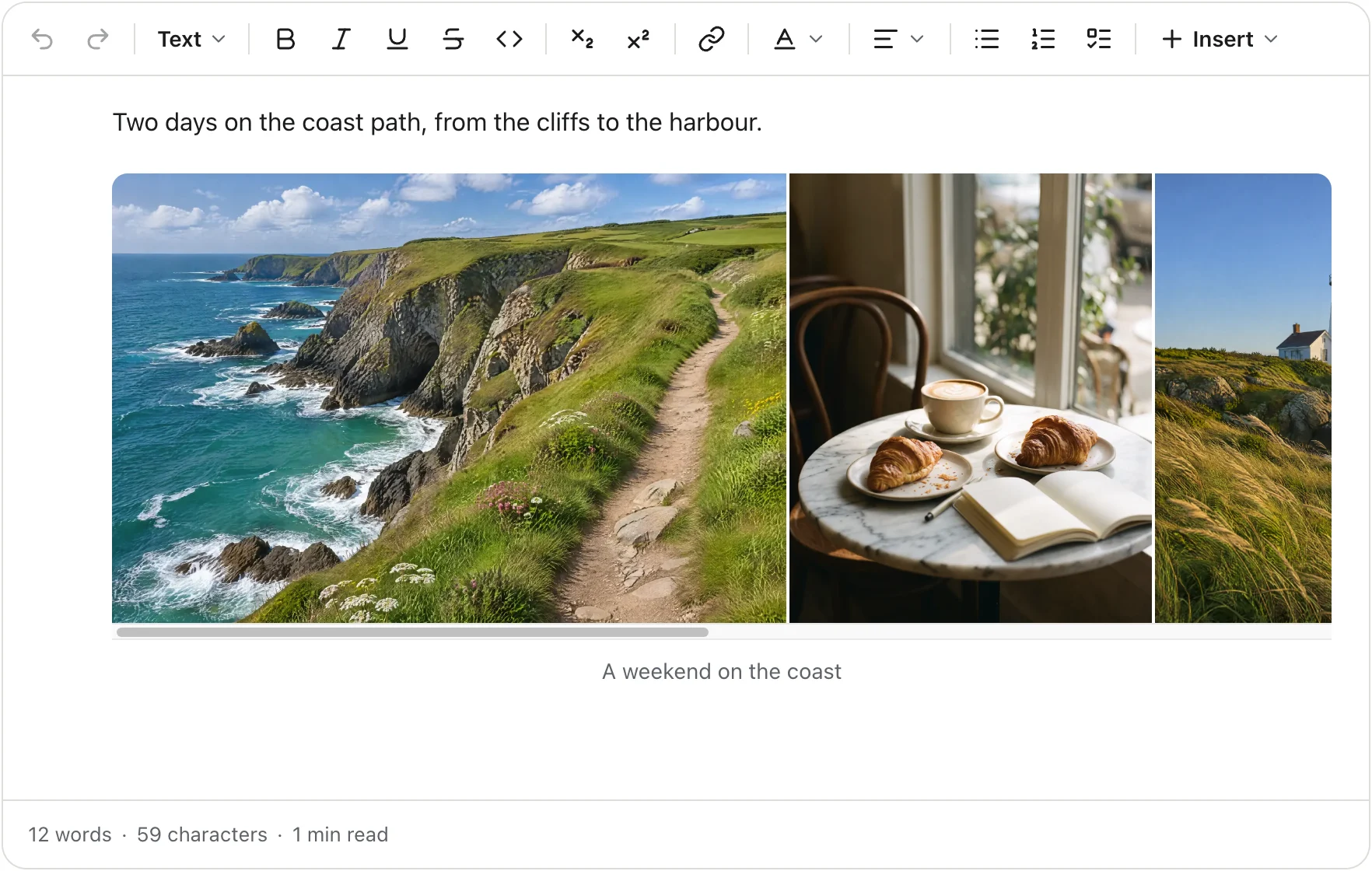
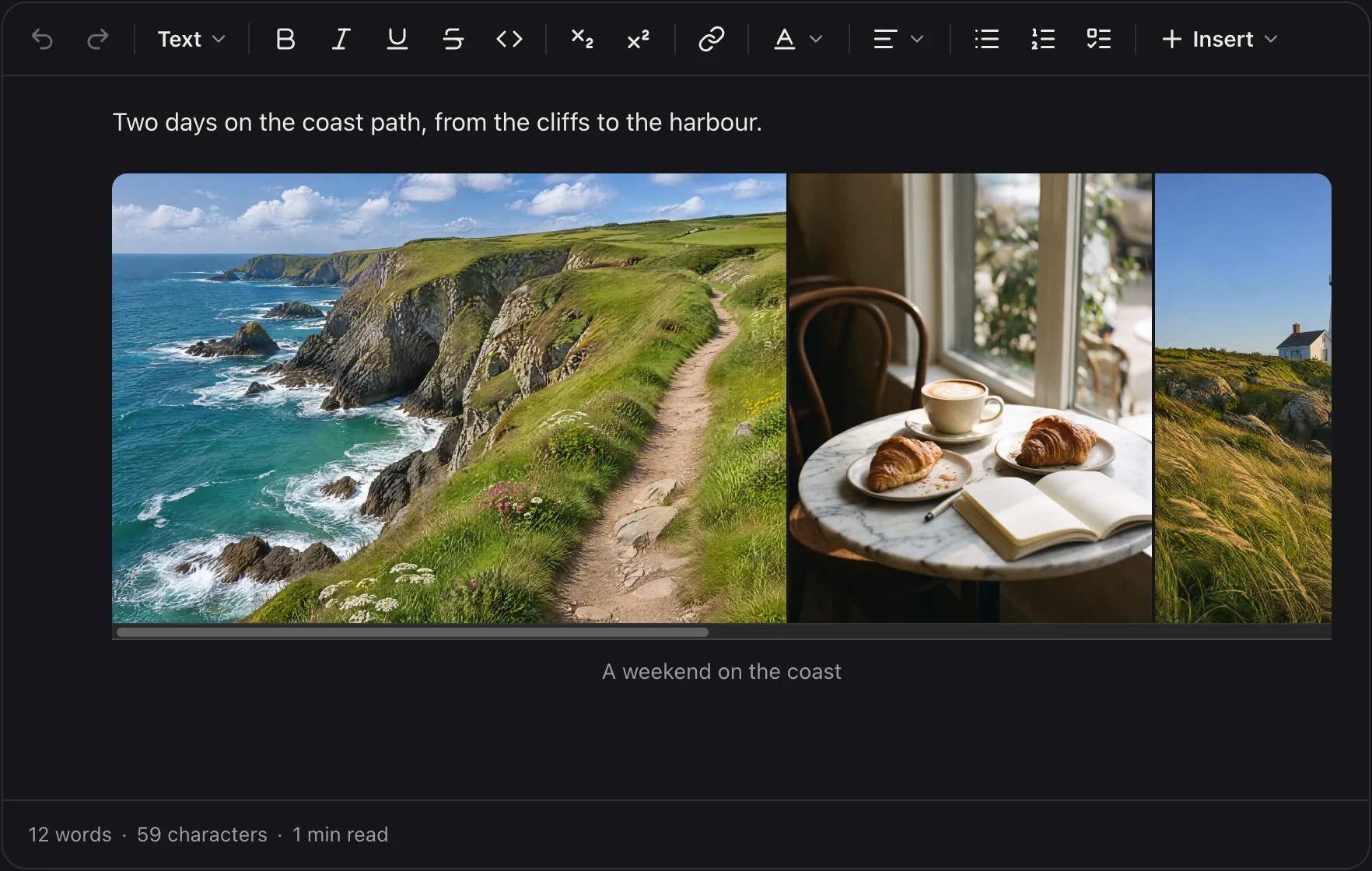
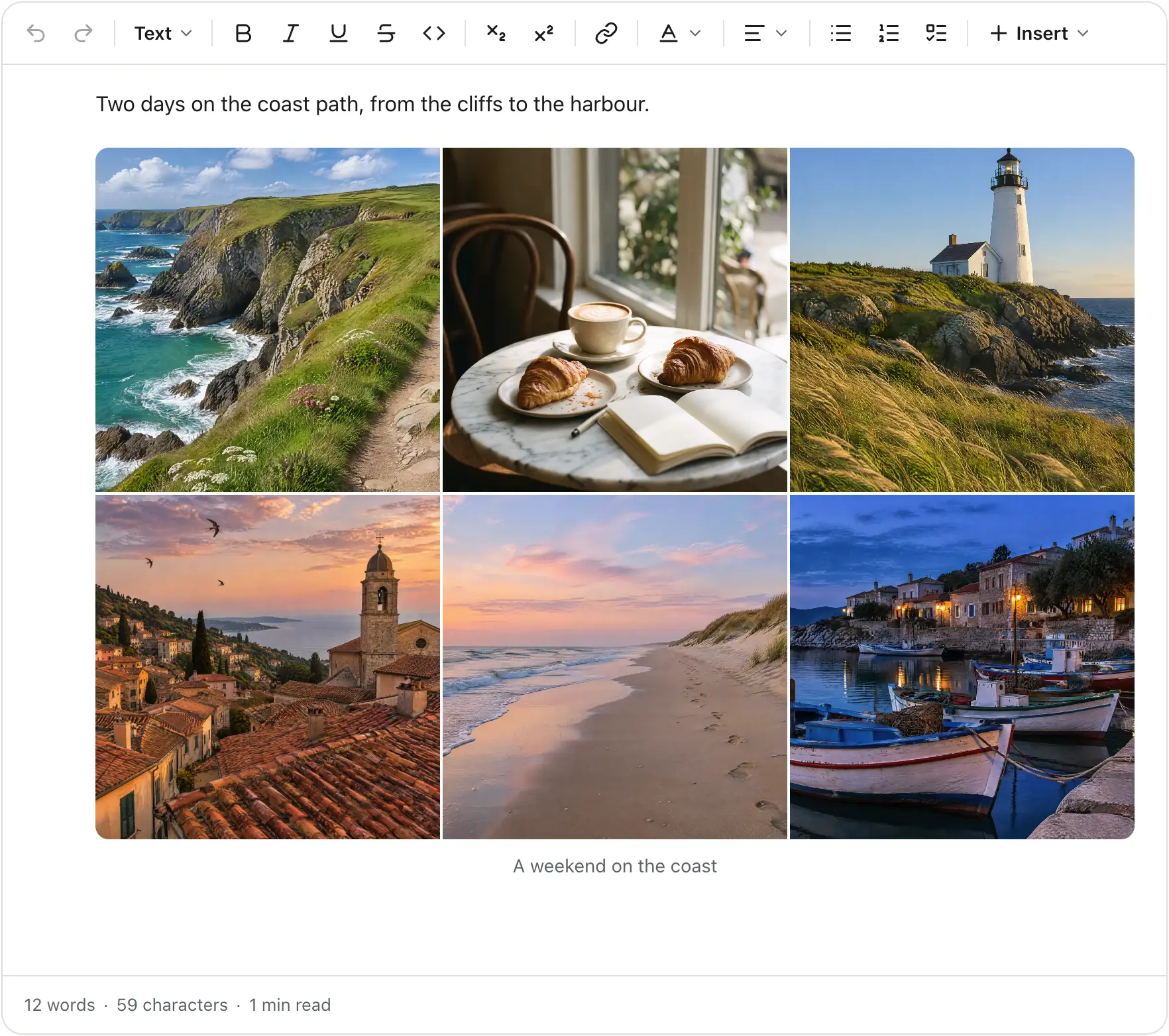
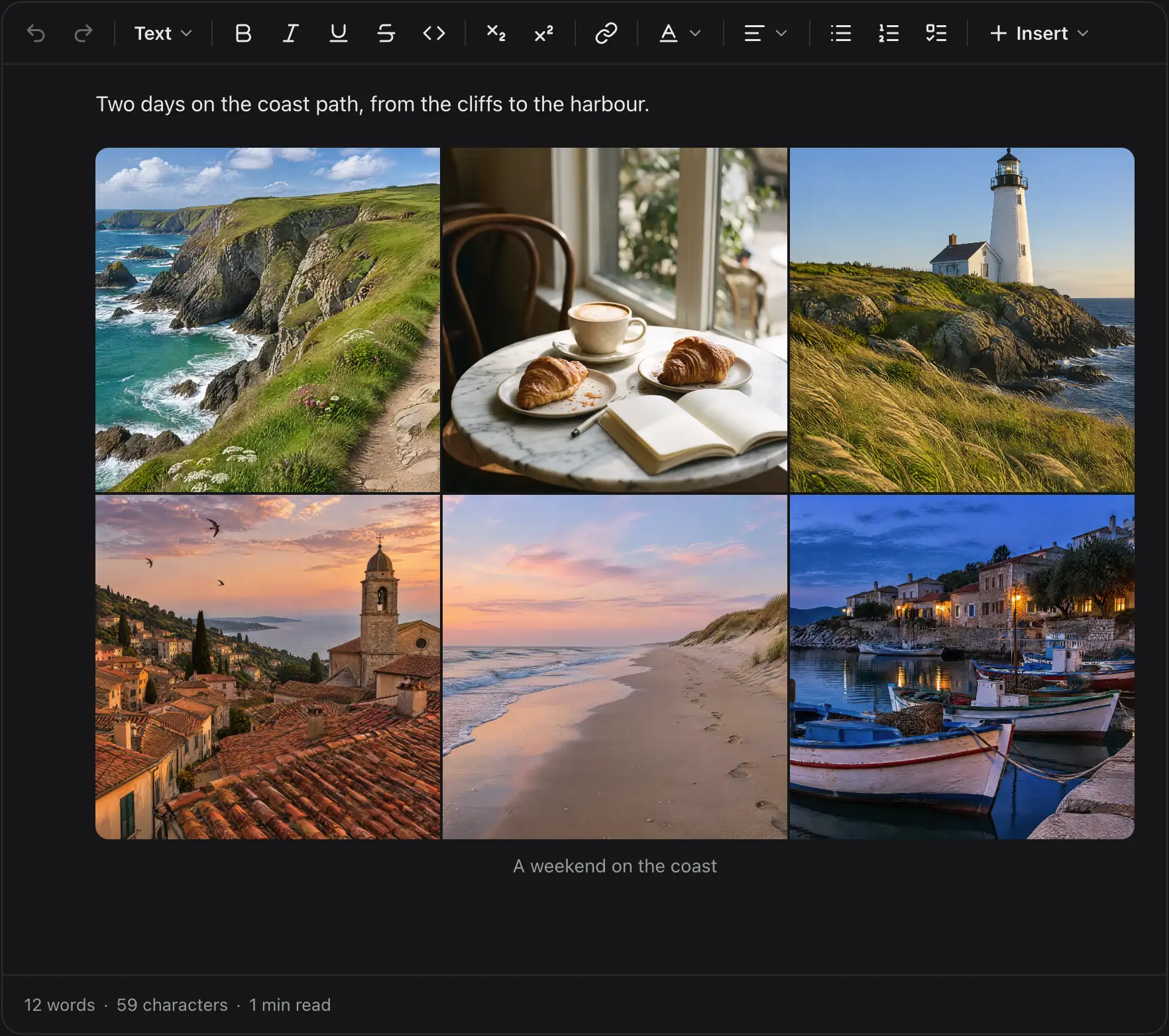
One gallery, four layouts
Live editorPick a layout here, or select the gallery and use its own menu.
Layouts
Carousel, grid, masonry and collage
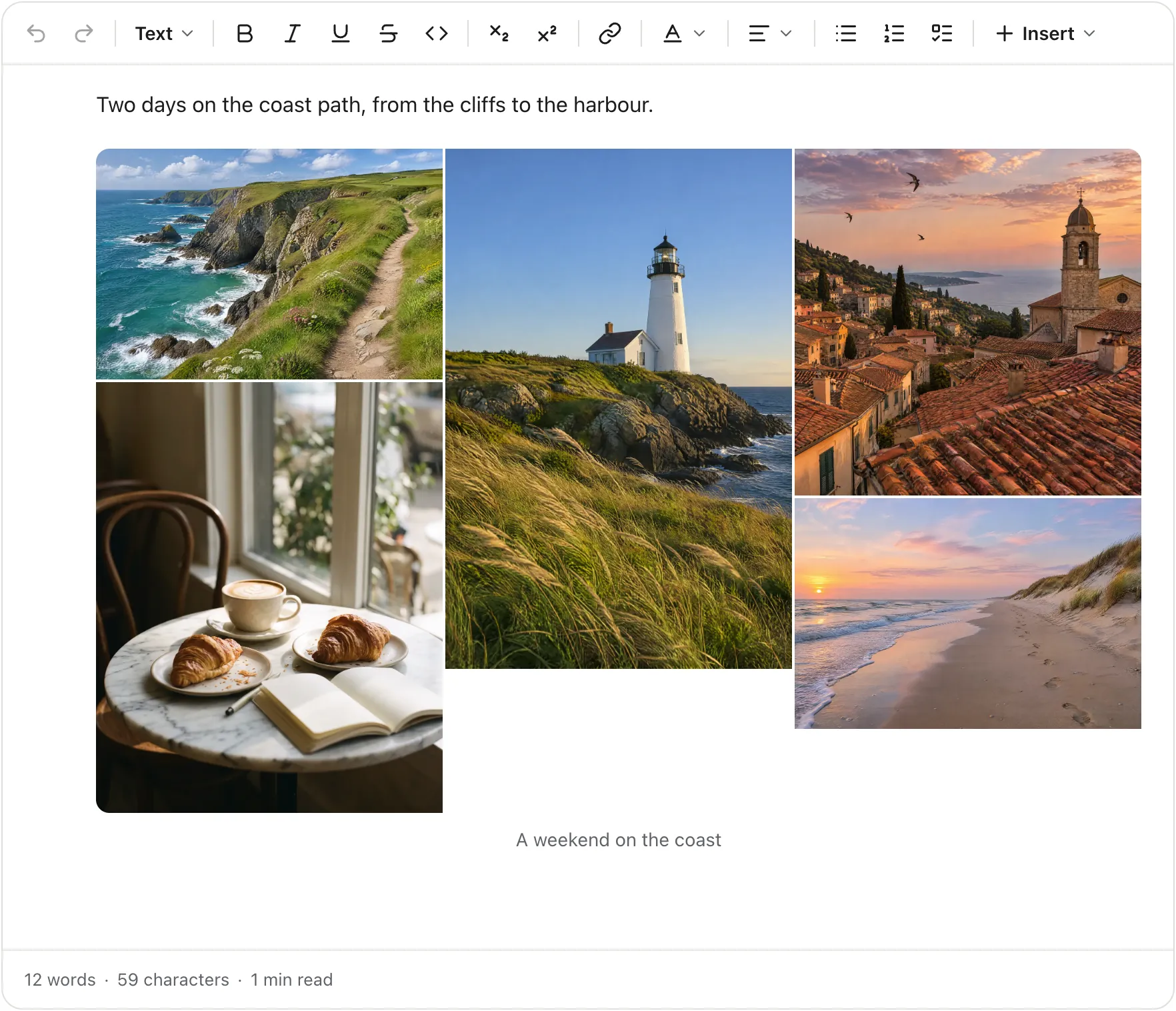
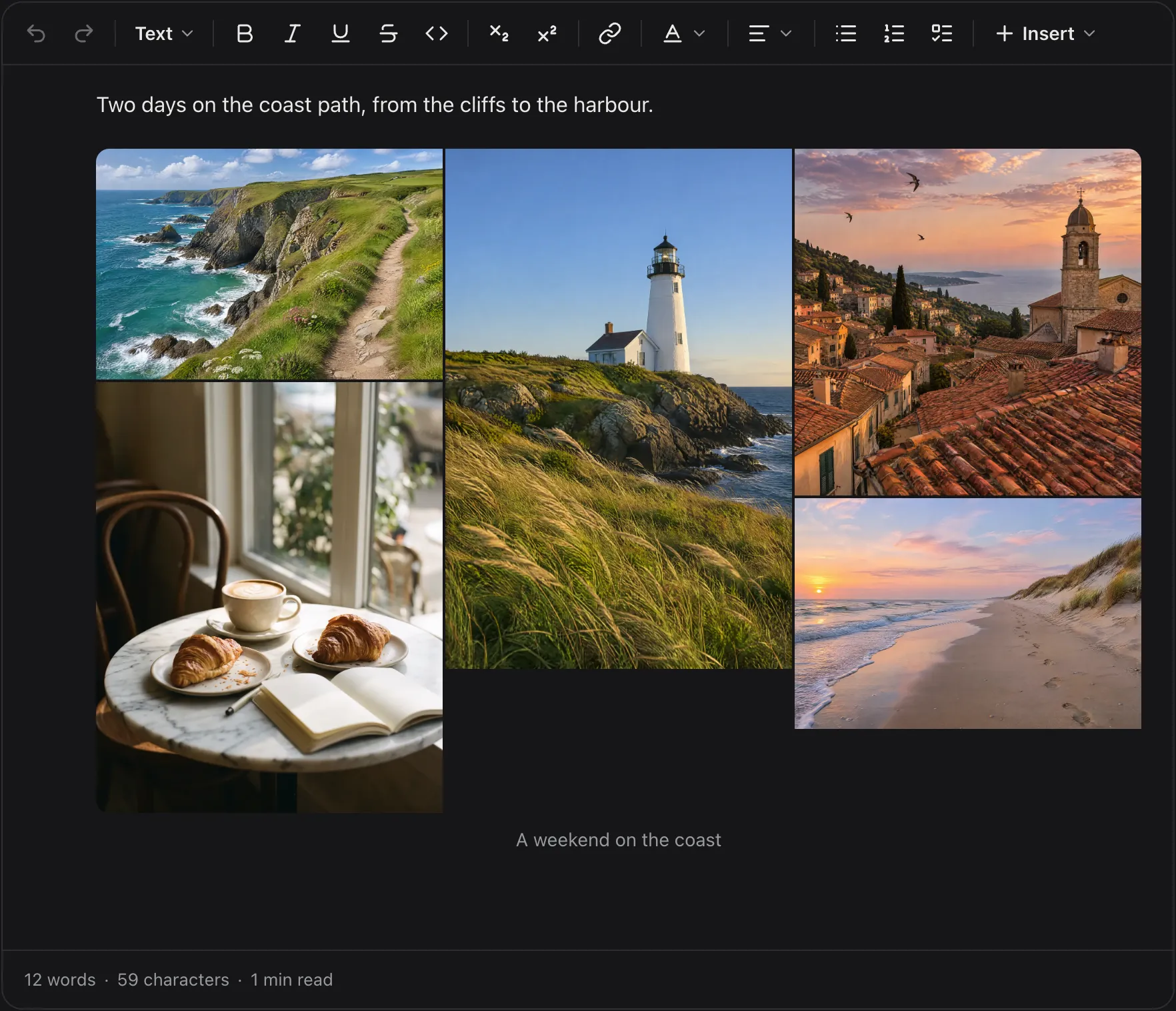
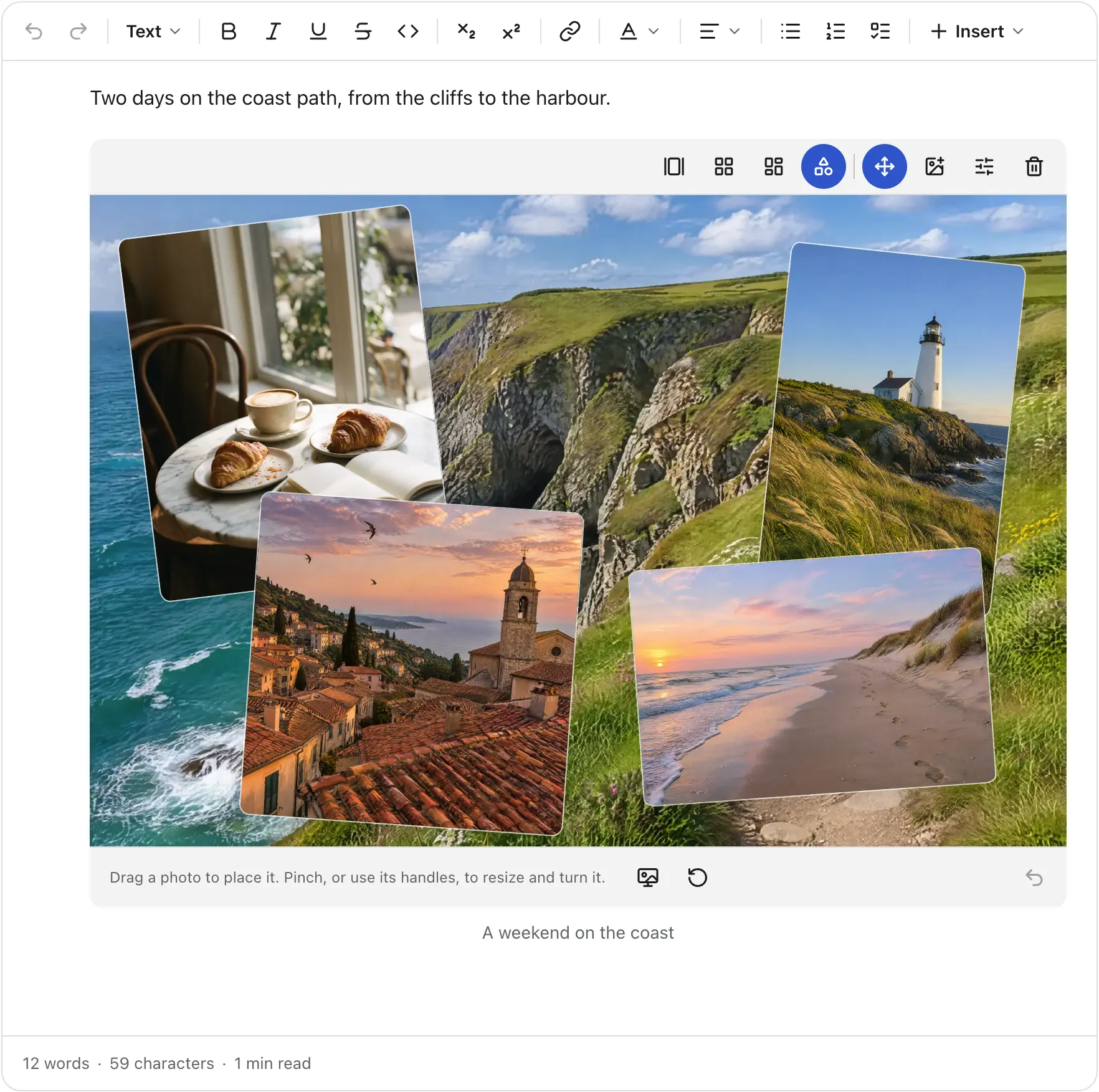
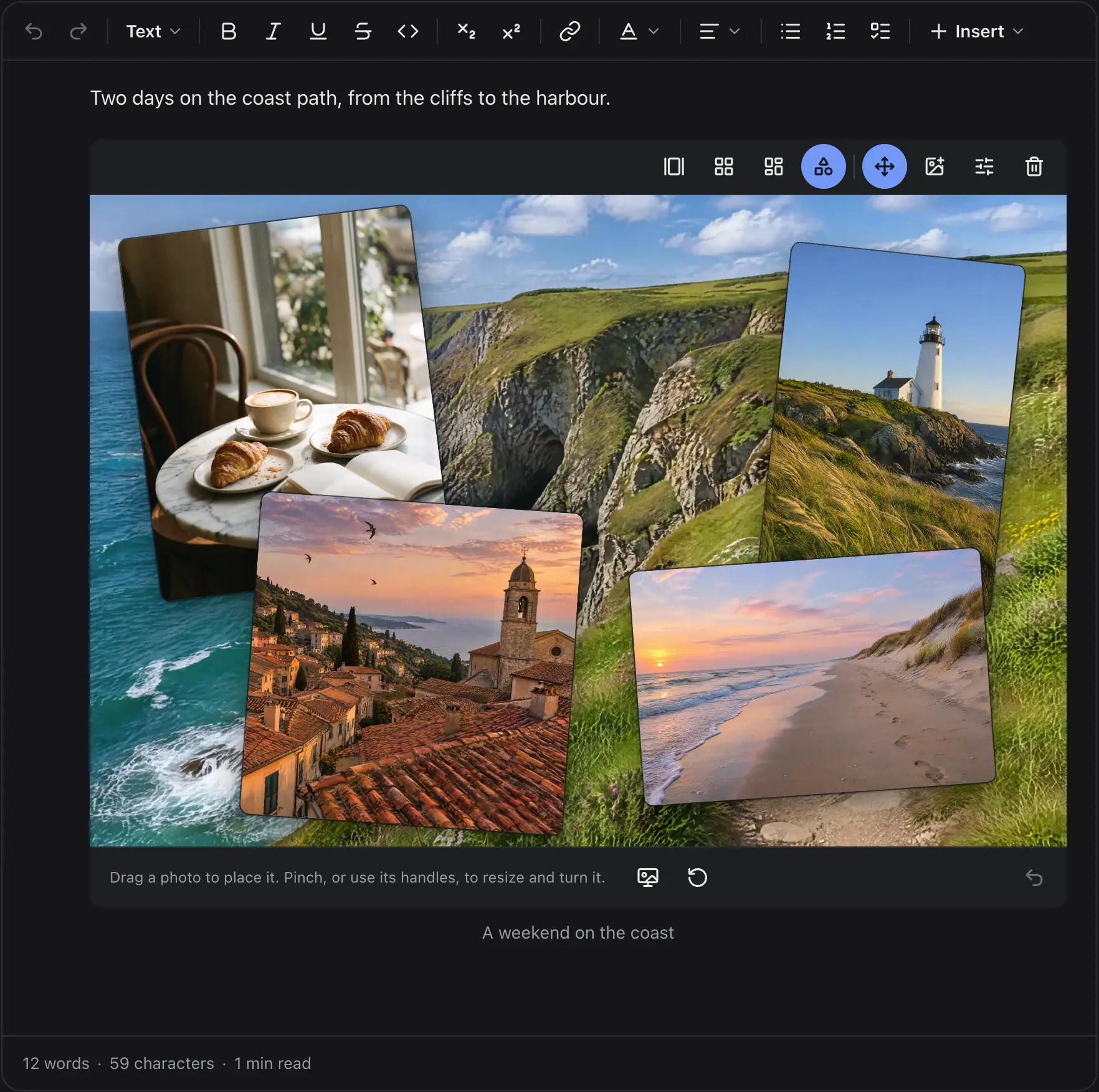
Upload
An upload adapter with progress, cancel and retry
upload() function sends the file to your storage and returns its URL. The uploads guide has recipes for S3, Cloudinary and your own route, and the progress helper this uses.import { PostCanvas, type UploadAdapter } from 'post-canvas';
import 'post-canvas/styles.css';
import { xhrUpload } from './xhr-upload'; // progress and abort, from the uploads guide
const upload: UploadAdapter = {
async upload(file, { signal, onProgress }) {
// 1. Ask your server for a presigned S3 URL.
const res = await fetch('/api/uploads', {
method: 'POST',
body: JSON.stringify({ name: file.name, type: file.type }),
signal,
});
const { uploadUrl, publicUrl, key } = await res.json();
// 2. Send the file straight to the bucket, reporting progress.
await xhrUpload({ method: 'PUT', url: uploadUrl, body: file, signal, onProgress,
headers: { 'Content-Type': file.type } });
// 3. Return the public https URL. Width and height are measured for you.
return { src: publicUrl, id: key };
},
maxBytes: { image: 10 * 1024 * 1024 },
};
export function Editor() {
return (
<PostCanvas
adapters={{ upload }}
features={{ gallery: { layouts: ['carousel', 'grid', 'masonry', 'collage'], maxPhotos: 10 } }}
/>
);
}// app/posts/[id]/page.tsx: a Server Component
import { renderToHTML } from 'post-canvas/server';
export default async function Post({ params }: PageProps<'/posts/[id]'>) {
const post = await getPost((await params).id); // your storage
// Sanitizes first, then renders the gallery in its saved layout.
const html = renderToHTML(post.content);
return <article dangerouslySetInnerHTML={{ __html: html }} />;
}FAQ
Questions
Does Tiptap have image upload built in?
No. Tiptap’s Image extension inserts an image from a URL and does not upload files. Its FileHandler extension catches pasted and dropped files, and you write the upload yourself. Post Canvas adds an upload adapter with progress, cancel and retry on top of Tiptap.
How do I resize images in Tiptap?
Tiptap’s Image extension has had a resize option since 3.10.0. In Post Canvas, a single image has five widths (centre, wide, full, left and right), and photos in a collage resize with a handle, a drag or a pinch.
Is there a Tiptap image gallery extension?
We found none among Tiptap’s open-source packages. Post Canvas ships a gallery node with four layouts (carousel, grid, masonry and collage), a gallery manager for reordering, and alt text and captions on each photo.
Can I use the galleries without the rest of Post Canvas?
Yes, with usePostCanvasEditor and the post-canvas/extensions entry you can build your own interface around the same nodes. Turn off what you do not need with the features prop, as the demo on this page does.
Compare more
Other comparisons and guides
- TinyMCE alternativeLicence, API key, plugins and how to move your HTML over.
- React Quill alternativeFor apps on react-quill or Draft.js moving to current React.
- Tiptap vs LexicalTwo editor frameworks, compared from their own docs.
- CKEditor alternativeLicence keys, premium features and an HTML import.
- Froala alternativeA free editor for posts with photos and video.
- Galleries guideLayouts, limits, the manager and the collage editor.
Add galleries to your Tiptap editor
Install Post Canvas, pass an upload adapter, and your writers get all four layouts.
npm install post-canvas